How to install AdLock on Android TV
Get AdLock, your ad-free TV experience, up and running with this simple guide. These steps use a browser like TVBro or BrowseHere to download and install the app. Any Android TV browser that supports file downloads will work.
Step 1: Get a Browser on Your Android TV
- Open the Google Play Store on your Android TV;
- Search for TVBro (or BrowseHere if preferred) and install it;
- Launch the browser once installed.
Step 2: Download the AdLock App

- In the TVBro address bar, type https://adlock.com/apktv/ and hit Enter;
- The AdLock APK will start downloading automatically;
- When the download completes, go to the browser’s Downloads menu (check the sidebar or menu options);
- Find and select the AdLock APK file.
Step 3: Install AdLock

- If prompted with a security warning about installing apps from unknown sources, allow the browser to proceed;
- Click the AdLock APK file in the Downloads menu to start installation;
- In the pop-up system window, select Install;
- Once installed, choose Open to launch or Done to finish.
Step 4: Start Blocking Ads
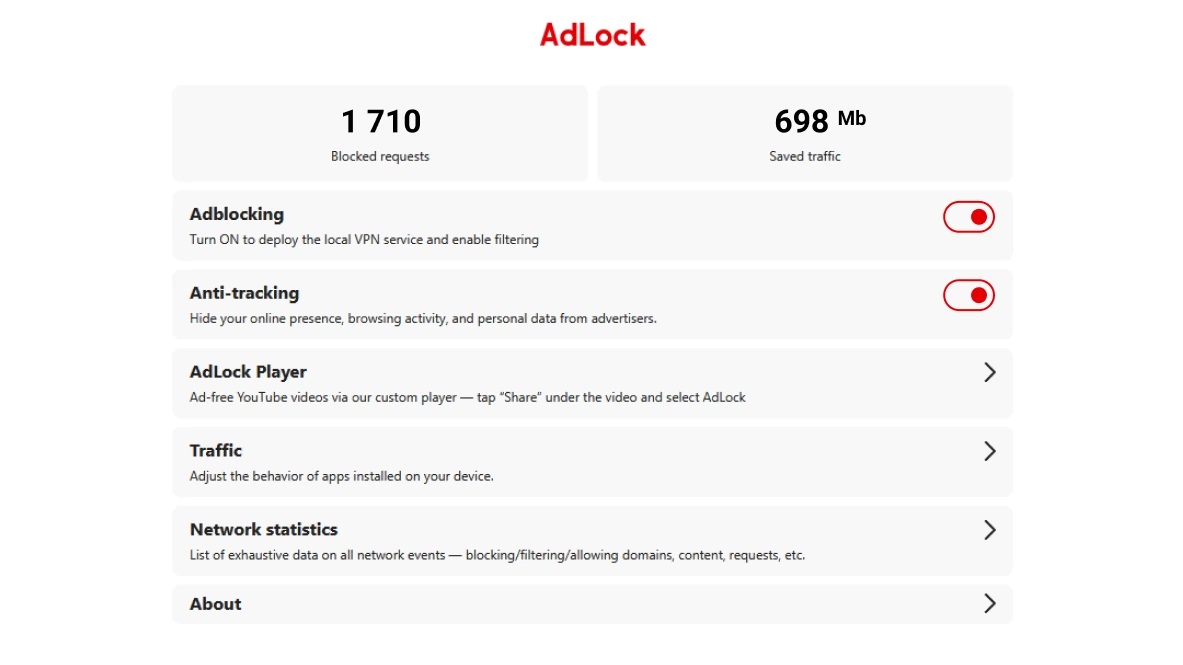
- Navigate to your Android TV’s Apps section;
- Select the AdLock icon to open the app;
- Complete the quick setup by following the on-screen prompts.
You’re all set! AdLock is now ready to block ads and enhance your Android TV experience.
If the download does not start, try clicking here