How to Block Ads on Pinterest
Pinterest is built for discovery, but promoted Pins have become a constant presence — mixed into your home feed, appearing mid-scroll, and following you around the web through retargeting. If you want to get rid of ads on Pinterest and just browse in peace, there are a few approaches worth knowing.
This guide covers what actually works: Pinterest’s built-in ad controls (useful as a first step, but limited), and a dedicated Pinterest ad blocker like AdLock that works on Windows, macOS, Android, iPhone, and Chrome. We’ll be direct about what each option can and can’t do.
✅ Works for Android, iOS, Windows, macOS, and all major browsers.
Browse Pinterest Without Sponsored Pins
AdLock removes all promoted posts and tracking ads for a cleaner experience
Contents
Why Does Pinterest Have So Many Ads?
Pinterest’s business model runs on advertising. The platform is free to use, and promoted Pins are how it generates revenue. The frustrating part — from a user’s perspective — is that ads are designed to look almost identical to organic content. Same card format, same grid layout. There’s no sidebar column to ignore, no obvious banner to scroll past. Just a small “Promoted” label that blends in while you’re looking at recipes or home renovation ideas.
What you’ll typically encounter:
- Promoted Pins mixed into your home feed
- Video ads between boards
- Shopping ads tied to your search history
- Retargeted ads from websites you visited elsewhere
- Sponsored content from lifestyle and retail brands
Pinterest also pulls data from third-party partners to sharpen targeting. That’s why ads can feel oddly specific — and why they seem to follow you across the internet. Even when individual ads are tolerable, the volume adds up fast when you’re trying to stay focused on a project.
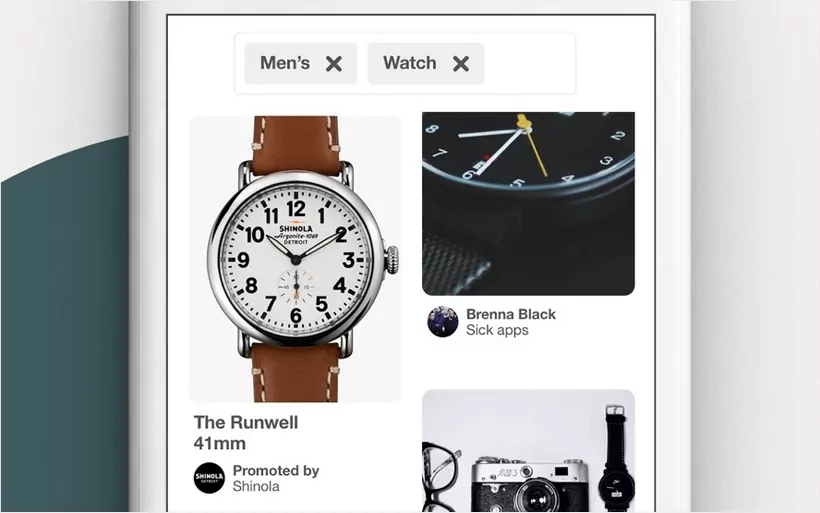
Pinterest’s Weight Loss Ad Policy
Since 2021, Pinterest has banned all weight loss ads — content referencing BMI, before/after imagery, body comparisons, and weight loss products or services. It’s the only major social platform to go this far, and it matters for user well-being.
That said, restricting one category of ads doesn’t make the overall experience clean. Plenty of other promoted content remains, which is why users still look for ways to block ads on Pinterest more broadly.
How to Adjust Pinterest Ad Settings (Browser Only)
Pinterest gives you some control over how ads are targeted. These settings won’t remove ads — but they reduce how precisely you’re being profiled.
On desktop, here’s how to get fewer ads on Pinterest:
- Log in to Pinterest and click your profile photo in the top-right corner
- Go to Settings > Privacy and data
- Under “Ads,” disable “Use information from our partners to improve ads you see on Pinterest”
- Save your changes
You can also manage individual ads as you browse:
- Click the three dots (⋯) on any promoted Pin
- Select Hide ad to remove it from your current feed
- Select Report ad if the content seems inappropriate or off-topic
- Use “Learn more about this ad” to see which advertiser placed it
⚠️ These steps limit ad personalization, not ad volume. Pinterest will still show promoted Pins — they’ll just be based on less of your data. For actual removal, you need an external tool.
Read also:
How to Block Pinterest Ads with AdLock
AdLock is a standalone ad blocker that filters traffic at the network level — before it reaches your browser or app. The desktop and Android apps work across every browser and application on the device simultaneously, which makes them considerably more effective than a browser extension alone. Here’s how to set it up on each platform.
✅ On Windows
If you browse Pinterest on a PC, AdLock for Windows blocks promoted Pins system-wide — in Chrome, Firefox, Edge, or any other browser you use.
- Download and install AdLock for Windows
- Launch the app and let it run in the background
- Open Pinterest in any browser — promoted Pins and banners are filtered automatically
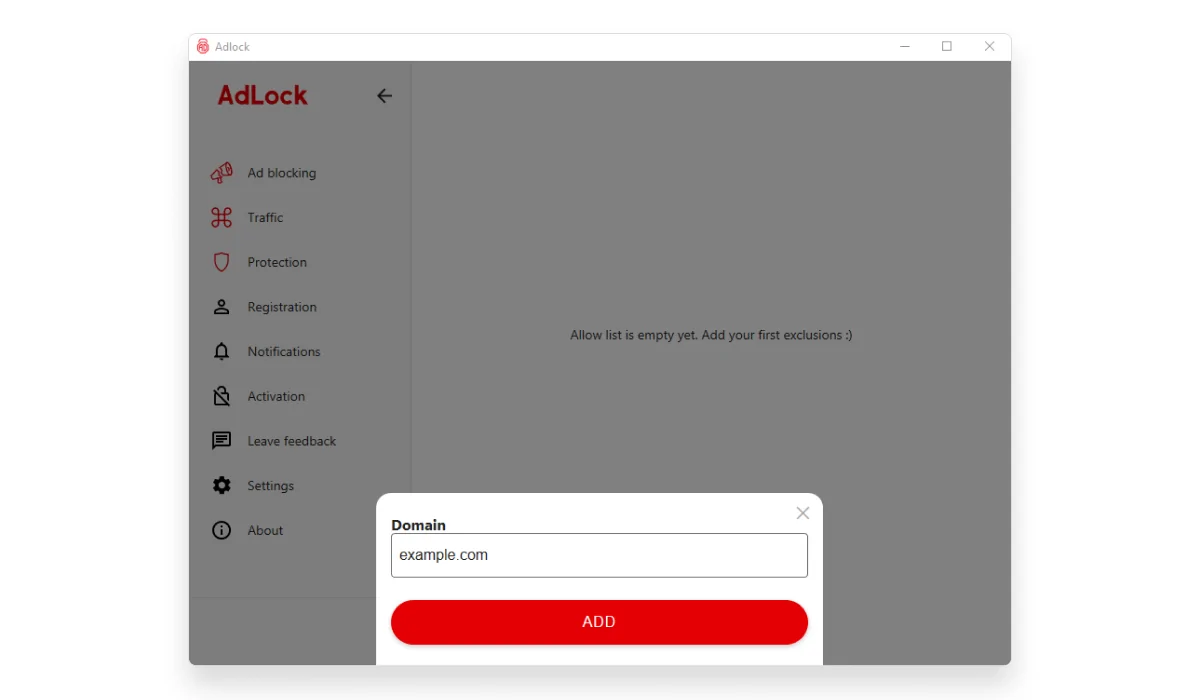
To whitelist a site you want to support: go to Ad Blocking > Allow List > Add Item and enter the domain.
✅ On macOS
AdLock for Mac applies the same system-level filtering — covering Pinterest in Safari, Chrome, Firefox, and other browsers simultaneously, no per-browser setup required.
- Download AdLock for macOS and move it to your Applications folder
- Open the app and grant the network extension permission when prompted
- Follow the setup steps — Pinterest ads in any browser will be filtered immediately
💡 You can customize filter rules in Preferences if you want to adjust what gets blocked or allowed on specific sites.
✅ On Android
AdLock for Android uses a local VPN to filter traffic from all apps on the device, including the Pinterest app itself. It’s available on Google Play (AdLock: Adblocker & Privacy) and as a direct APK download from adlock.com.
- Install AdLock for Android
- Open the app and go to Menu > Check Updates > Update All to make sure filter lists are current
- Enable HTTPS filtering in Settings
- Install the CA certificate when prompted — this allows AdLock to filter encrypted traffic from apps like Pinterest
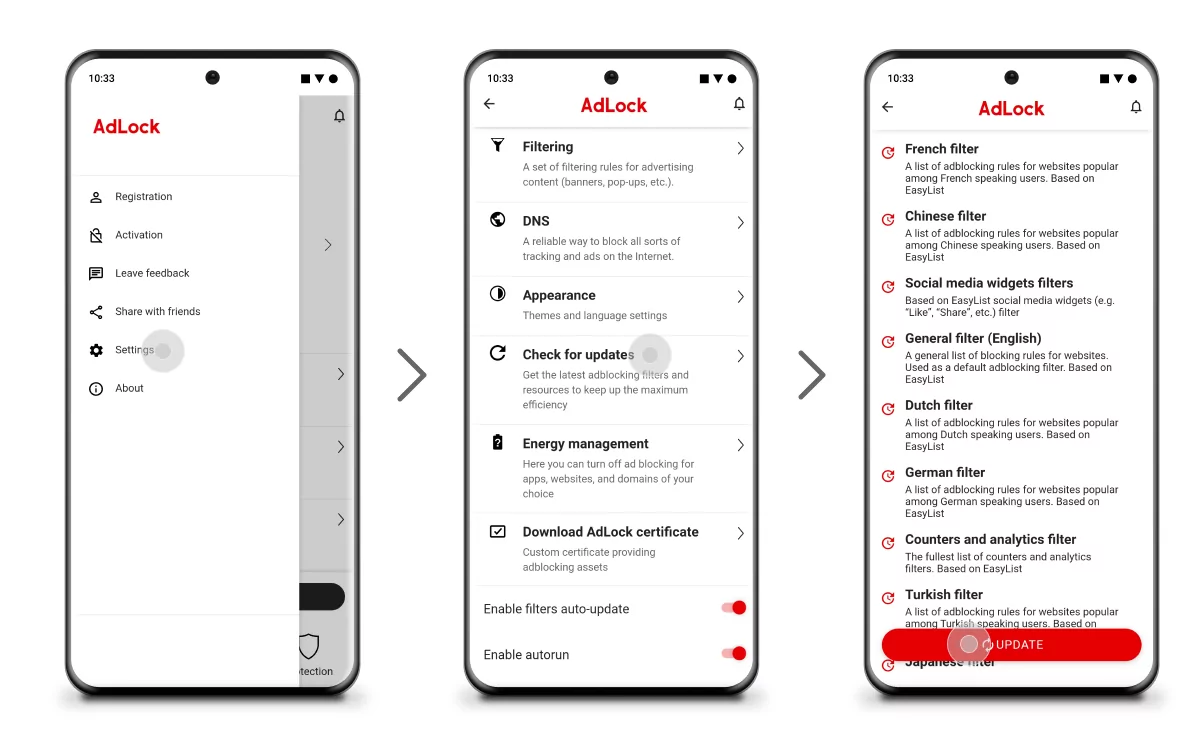
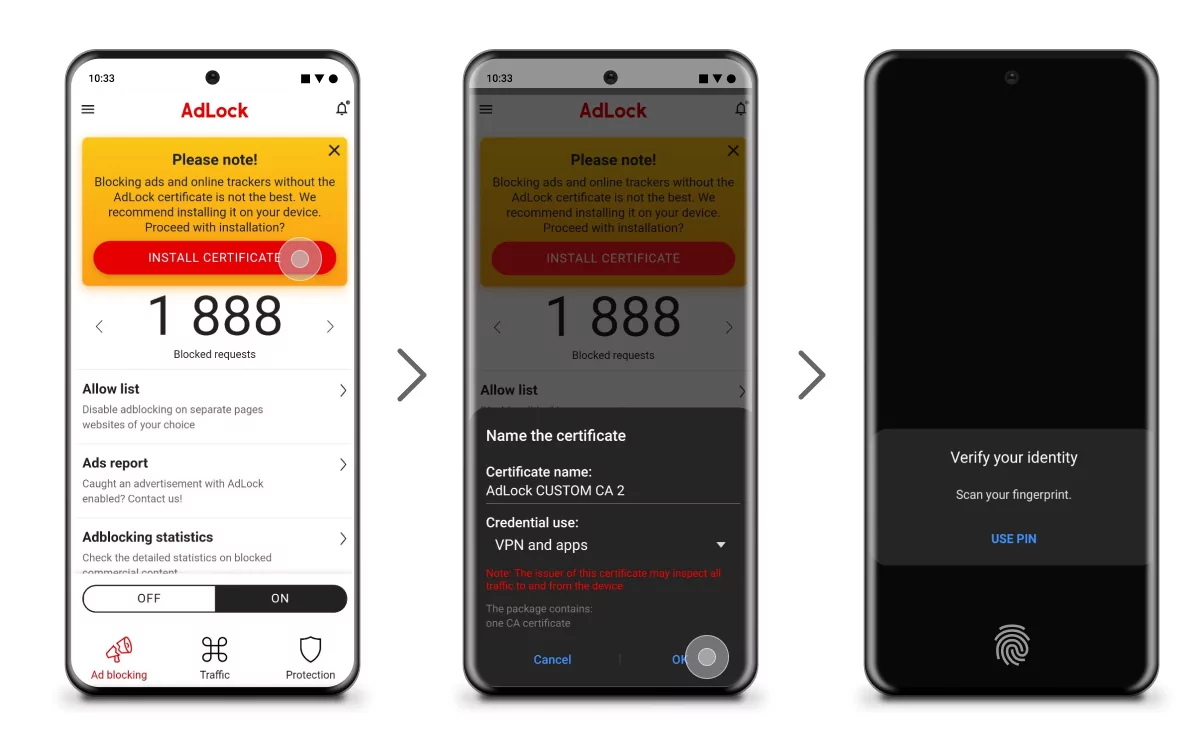
Pinterest bundles ad content with regular feed content inside the app, so some promoted Pins may still slip through. AdLock reduces the ad load significantly — it’s the most effective option available for Android without rooting the device.
✅ On iPhone and iPad
iOS has stricter system-level restrictions than Android, which limits what any ad blocker can do inside the Pinterest native app. AdLock for iPhone works as a content blocker integrated with Safari — so when you use Pinterest at pinterest.com in Safari, promoted Pins get filtered effectively.
For the Pinterest app on iPhone, system-wide ad blocking isn’t available under current iOS constraints. Apple doesn’t grant third-party apps that level of access. The practical workaround: use Pinterest through Safari with AdLock active. The mobile web version of Pinterest is close to the app in functionality, and you get full ad filtering in the process.
To enable it: go to Settings > Safari > Extensions, find AdLock, and toggle it on.
✅ In Chrome
If you mainly use Pinterest in Chrome, the AdLock Chrome extension is a quick, free option. Install it from the Chrome Web Store and it starts filtering Pinterest ads right away — no configuration needed.
Worth knowing: Chrome extensions now operate under Manifest V3, which limits some real-time blocking compared to what the standalone app can do. For complete coverage across all browsers and apps on your device, the desktop app is the stronger pick. The extension is a solid free starting point if you want something instant and zero-friction.
Read also:
Conclusion
Pinterest’s built-in ad controls are worth using — they reduce targeting precision and let you hide recurring ads. But they don’t remove ads from Pinterest. For that, you need an external tool.
AdLock delivers results on the platforms where it counts: Windows and Mac for complete cross-browser filtering, Android for significant reduction even inside the Pinterest app, and Safari on iPhone for clean browser-based browsing. If Chrome is your main browser, the free extension handles it without any setup.
Try AdLock and browse Pinterest the way it’s supposed to feel — boards, ideas, and nothing trying to sell you something.
Browse Pinterest Without Sponsored Pins
AdLock removes all promoted posts and tracking ads for a cleaner experience
FAQ
Can I block Pinterest ads completely?
On Windows and Mac, yes — AdLock removes promoted Pins, banners, and sidebar ads entirely when browsing in any browser. On Android, it significantly reduces ads in the Pinterest app. On iPhone, you can block Pinterest ads when using pinterest.com in Safari with AdLock active, but the native iOS app is harder to cover due to platform restrictions.
Is there an ad blocker for Pinterest on mobile?
On Android, AdLock works across the Pinterest app and browser using local VPN filtering. On iPhone, AdLock blocks ads when you browse Pinterest in Safari. For the Pinterest native app on iOS, full ad blocking isn’t possible — Apple doesn’t allow third-party apps that level of system access.
Does AdLock work with Safari?
Yes. AdLock for Mac filters ads in Safari system-wide as part of its network-level blocking. On iPhone and iPad, AdLock works as a Safari content blocker and handles Pinterest ads when browsing through Safari.
Can I block Pinterest ads on iPhone?
In Safari on iPhone, yes — enable AdLock as a Safari extension (Settings > Safari > Extensions) and Pinterest ads in the browser will be filtered. The native Pinterest app on iOS is harder to cover due to restrictions Apple imposes on third-party filtering apps.
How do I stop ads on Pinterest using settings?
Log in to Pinterest on desktop, go to Settings > Privacy and data, and disable “Use information from our partners to improve ads you see on Pinterest.” You can also hide or report individual ads using the three-dot menu on any promoted Pin.
What’s the best way to remove ads from Pinterest?
On Windows or Mac, the AdLock standalone app gives you the most complete solution — it blocks all ad types across every browser at once. On Android, install AdLock and enable HTTPS filtering. On iPhone, use Pinterest through Safari with AdLock active as a content blocker.
Why does Pinterest have so many ads?
Pinterest is a free platform funded by advertising. Promoted Pins are designed to look like regular content — same format, same grid — which makes them harder to avoid than traditional display ads. Pinterest also uses third-party partner data to target ads, which is why they can feel persistent and specific.
Is AdLock safe to use?
Yes. AdLock doesn’t log your browsing activity or collect personal data. The CA certificate required for HTTPS filtering on Android is used only to inspect and filter ad traffic locally on your device — nothing is sent externally.
Is AdLock free?
AdLock offers a free trial. After the trial, subscription plans cover all your devices across platforms. The Chrome extension is available free from the Chrome Web Store.

Similar news

AdGuard vs. uBlock Origin: The Ultimate Ad Blocker Comparison

How to Bypass Ad Blocker Detection: Methods That Still Work

How to Block Twitch Ads in 2026: Complete Guide for Every Device

Best Spotify Ad Blocker: Block Spotify Ads on Any Device (2026)

Best AdGuard Alternatives in 2026 (Free and Paid)