How to Stop Redirects on Android
Nobody wants to land on a shady page stuffed with ads. But redirects make that happen whether you asked for it or not. Beyond the annoyance, malicious redirects can trigger silent malware downloads in the background — and that’s how Android devices get infected without the user doing anything obviously wrong.
This guide covers how to stop redirects on Android: in Chrome, in Firefox, at the app level, and system-wide. Pick what fits your situation.
Redirects: How They Work
Forced redirects typically load inside an IFrame (Inline Frame) embedded in a webpage. The frame clicks itself — and instead of viewing the content you came for, you get sent to a different page or hit with a pop-up. That’s URL redirection working against you.
Redirects also have legitimate uses. Companies often register multiple domain variants — typos included — so that users who mistype a URL still land in the right place. If someone types “exampl.com” instead of “example.com,” a redirect saves that visit.
Other legitimate uses of URL redirecting:
- URL shortening
- Preventing broken links after site restructuring
- Device or geo-targeting
- Advertising tracking
The problem is that the same mechanism gets abused constantly by bad actors.
Are Redirects Dangerous?
Redirects are fundamental to how the web works — without them, browsing would break in countless ways. But in the wrong hands, they’re a delivery mechanism for malware. Cybercriminals and scammers use redirect chains to push malicious software so quietly that most users don’t realize anything happened until it’s too late.
Signs that your Android might have a redirect virus:
- Your browser opens unfamiliar or suspicious websites on its own
- Pop-up ads appear outside of any browser
- Your homepage or default search engine changed without your input
- Apps you don’t remember installing appeared on the device
- Device performance dropped noticeably
Once an infection takes hold, cleaning it up is painful. You may have to wipe files, uninstall apps, or in the worst case, factory reset the device. That’s why blocking redirects before infection matters much more than dealing with the aftermath.
How to Prevent Redirects on Android Using AdLock
Ad-blocking software is the most consistent way to stop malicious redirects on Android. AdLock for Android works at the network level — blocking redirects, ads, and malicious scripts across all browsers and apps on the device simultaneously, without needing a browser extension.
Unlike browser-based solutions, AdLock isn’t limited by Chrome’s content policy or browser-specific settings. It intercepts traffic before it reaches the browser, which means redirect attempts get cut off before they load.
You can try AdLock free for 14 days. Once installed, two settings make the biggest difference:
- Check for updates
Launch the app, tap the overflow menu (top right corner), and choose “Check updates.” In the next menu, tap “UPDATE ALL” to make sure your filter lists are current.
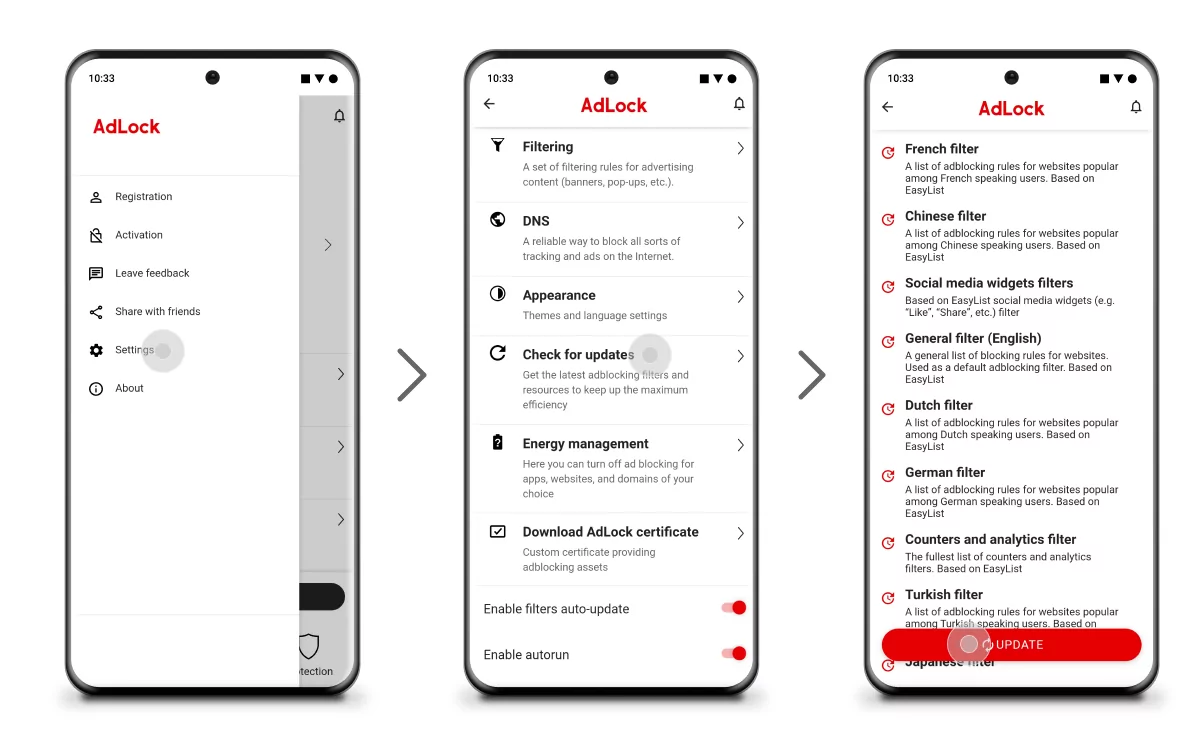
- Enable HTTP filtering
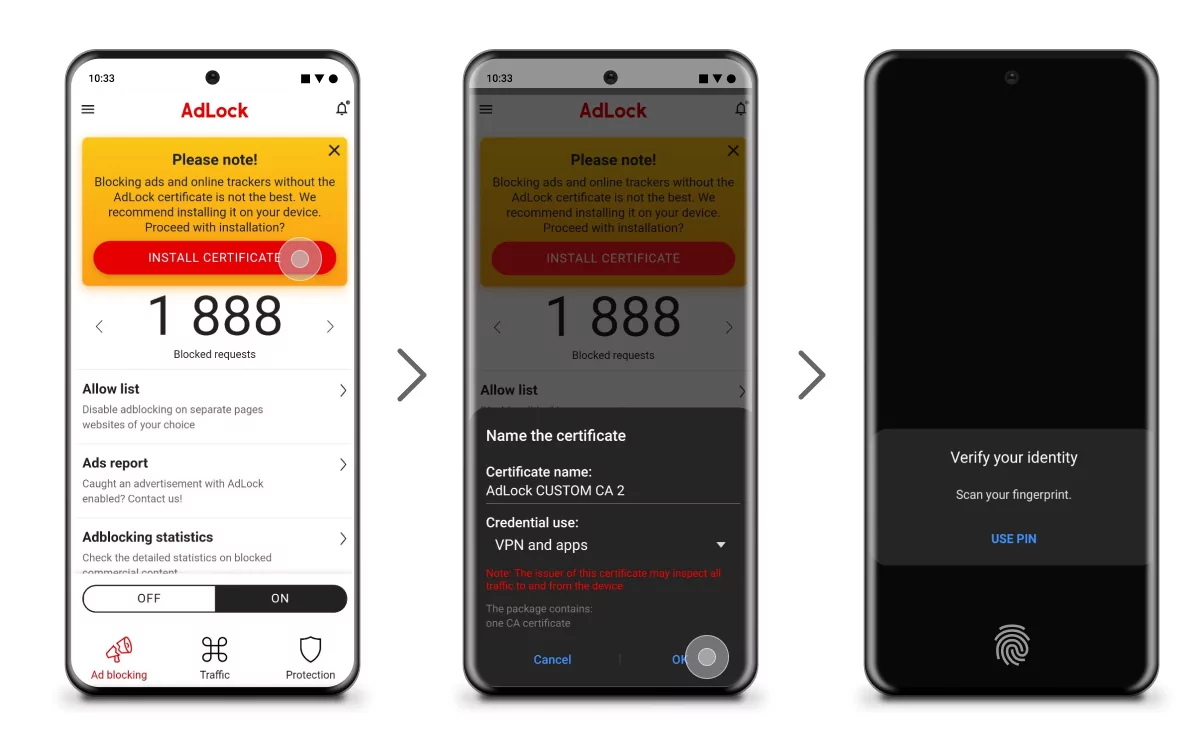
Switch to the AdLocker tab and turn on HTTP filtering. Tap OK in the prompt, then set a graphic key to confirm ownership for future actions.
HTTP filtering is critical for catching malicious redirects. You’ll likely get a warning from Google — they flag this feature because it intercepts traffic they’d rather control. That warning is just a formality. AdLock doesn’t collect, process, or share your data with any third party. Without HTTP filtering enabled, ad and redirect blocking works only partially.
How Do I Stop an App From Redirecting?
Android uses scheme-based deep linking — links associated with a specific installed app open in that app rather than in a browser. Most of the time that’s convenient, but when the rules get mixed up, you end up bounced into an app you didn’t want to open. Three ways to fix it:
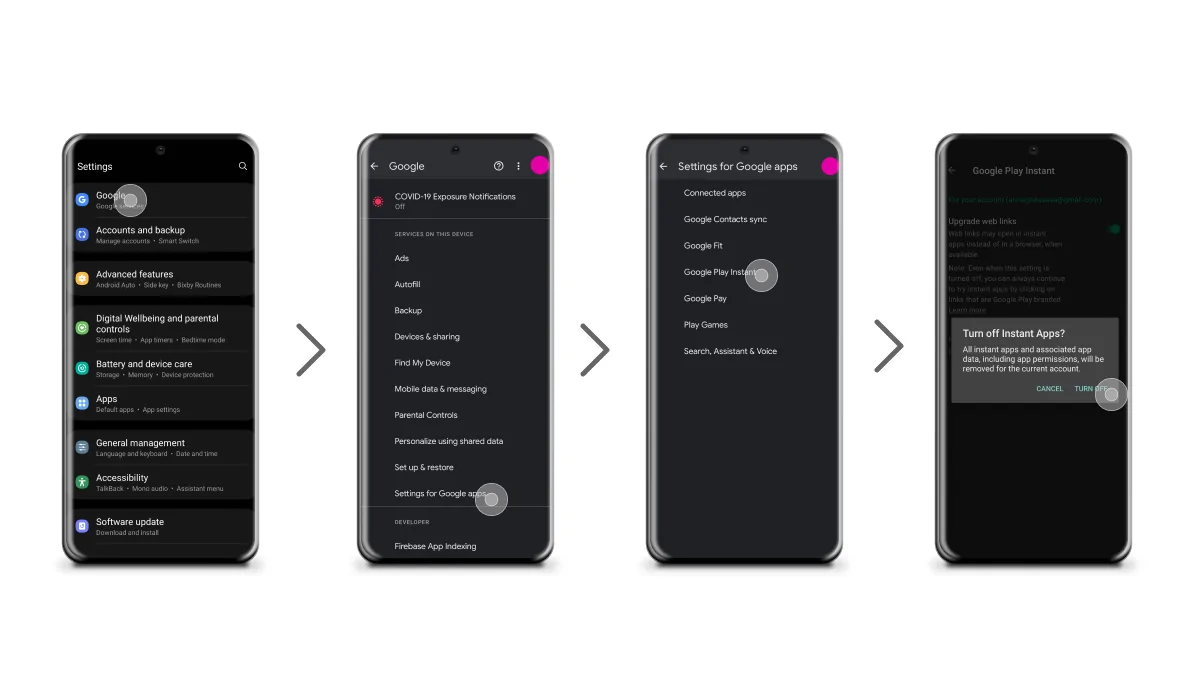
- Disable Instant Apps
Instant Apps let you run a lightweight version of an app without installing it. Links associated with that app trigger it automatically, which can be more disruptive than useful. To turn it off: Settings > Google > Settings for Google Apps > Google Play Instant > toggle OFF.
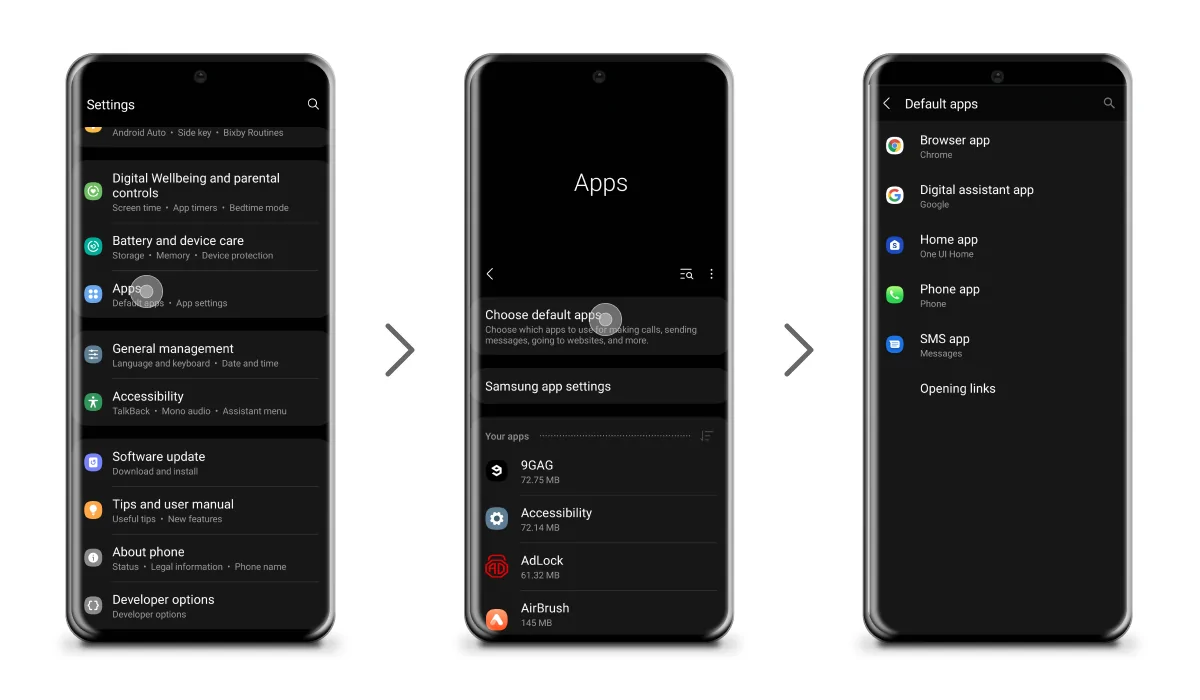
- Change Default Apps settings
Each function on Android (navigation, browser, phone calls) is assigned a default app. If the wrong app is set as default, links will keep opening there. Fix it at: Settings > Apps > Default apps — select the function, then pick the app you actually want, or set Chrome to always handle it in the browser.
- Reset App Preferences
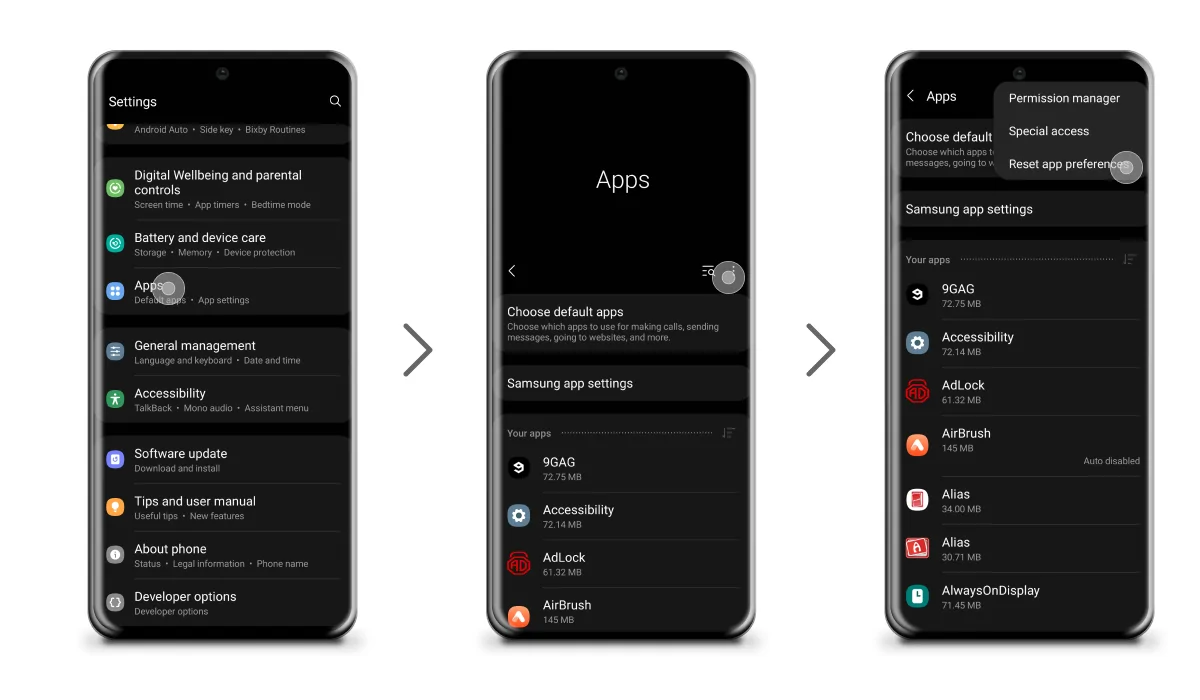
If the two options above didn’t fix it, reset all app preferences at once. This doesn’t delete apps or data — it resets permissions, default assignments, and deep linking rules back to their original state. Go to: Settings > Apps > three-dot icon (top right) > Reset app preferences.
How to Stop Redirects in Chrome on Android
Chrome has a built-in pop-up and redirect blocker. It’s enabled by default in recent versions, but worth checking manually — especially if redirects are happening frequently.
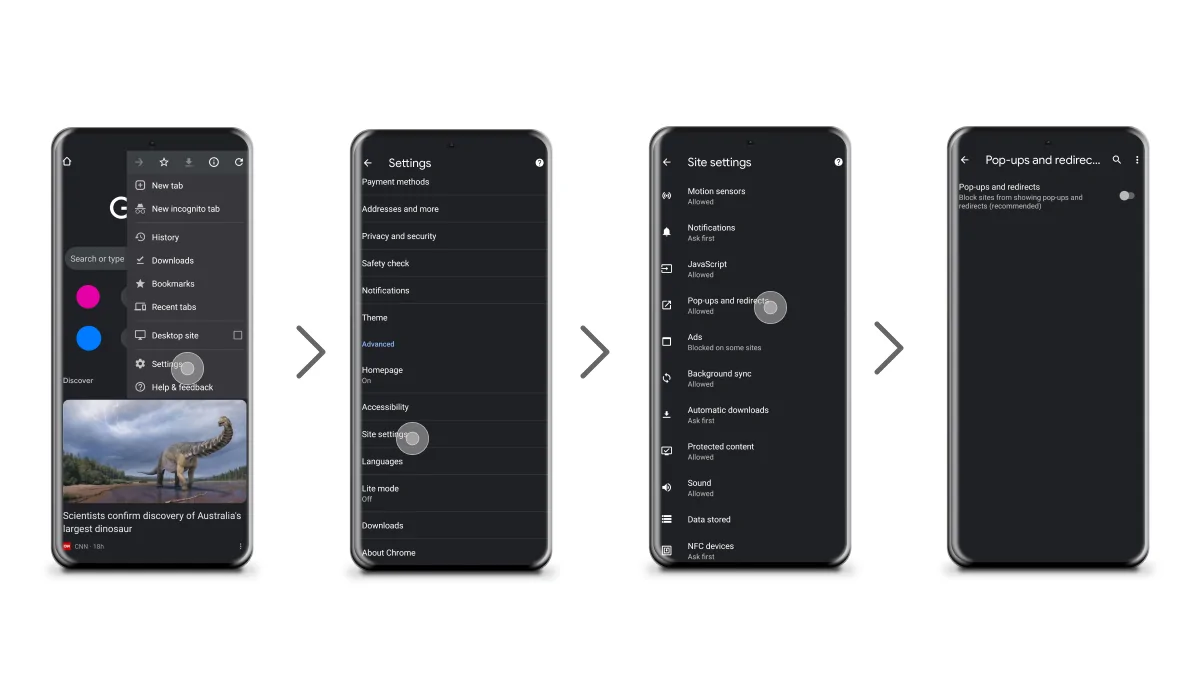
- Open Chrome and tap the three-dot menu (top right).
- Go to Settings > Site Settings.
- Tap Pop-ups and redirects.
- Make sure the toggle shows Blocked (greyed out). If it says Allowed, switch it off.
Honest assessment: Chrome’s built-in blocker catches basic redirects but isn’t built for malicious ones. If a redirect virus is already on your device, it can override browser-level settings entirely. The only real fix at that point is a factory reset — after antivirus software fails to clean it up.
Looking for a broader solution? Here’s how to block all ads on Android without jumping through browser settings every time.
How to Block Redirects on Firefox for Android
Firefox includes safe browsing features on Android, but like Chrome’s built-in blocker, it’s not a complete solution. It catches some redirects — not all.
For reliable redirect blocking in Firefox, a system-level solution makes more sense. AdLock stops redirects across all browsers on the device — Firefox included — without any browser-specific configuration required. It works the same way regardless of which browser you use.
Scan Your Phone for Malicious Software
If redirects are already happening and browser settings haven’t helped, there may be malware involved. A full device scan is the next step. Three antivirus apps with a solid track record on Android:
Avast Mobile Security — one of the most-installed Android antivirus apps, with real-time threat monitoring and a deep scan that covers all stored files and apps. Beyond virus scanning, it includes App Lock, Anti-Theft, Photo Vault, VPN, and Wi-Fi speed checking.
AVG Mobile — proven effectiveness against common Android malware types, with an interface that’s easy to navigate. Includes scheduled scans, junk cleaning, RAM boost, Photo Vault, and call/SMS blocking.
Norton Mobile Security — long-trusted on desktop, the Android version offers strong malware detection, anti-theft features, Safe Search, Wi-Fi security monitoring, and call/SMS blocking.
None of these are affiliated with or endorsed by AdLock — these picks are based on user reports and general reputation. If antivirus clears the device but redirects continue, pair it with a dedicated Android ad blocker for system-wide redirect prevention going forward.
FAQ
How do I stop redirects on Android?
The most reliable method is using a system-level ad blocker that filters network traffic before it reaches the browser. You can also check Chrome or Firefox’s built-in pop-up and redirect settings, and disable Instant Apps in Android settings. If redirects are caused by malware, run a full antivirus scan first.
What causes redirects on Android?
Redirects happen for several reasons: websites using IFrame-based redirect scripts, app deep linking rules that send you to the wrong app, malicious software installed on the device, or a redirect blocker that isn’t enabled. Malicious redirects are the most dangerous and often the hardest to spot.
How do I stop Chrome from redirecting on Android?
Open Chrome, go to Settings > Site Settings > Pop-ups and redirects, and make sure the toggle is set to Blocked. This is on by default in recent Chrome versions but may need manual adjustment on older installs. For protection beyond what Chrome offers natively, a system-level ad blocker covers what the browser can’t.
How do I know if my Android has a redirect virus?
Common signs: your browser opens unfamiliar websites on its own, pop-up ads appear even when you’re not in a browser, your homepage or default search engine changed without your input, or apps you don’t remember installing appeared on the device.
Can an ad blocker stop redirects on Android?
Yes — a system-level ad blocker that works at the network layer intercepts redirect attempts before they load. AdLock does this across all browsers and apps on the device simultaneously. Browser extension-based blockers are more limited and don’t cover in-app redirects.
Are redirects on Android dangerous?
Some redirects are harmless — like typo-catching domain forwarding. But malicious redirects can install malware silently, send your data to phishing pages, or load aggressive adware. If redirects are happening frequently and unprompted, treat it as a potential security issue rather than just an annoyance.

Similar news

Best AdGuard Alternatives in 2026 (Free and Paid)

How to Get Rid of Ads on the Chai AI App

Best Spotify Ad Blocker: Block Spotify Ads on Any Device (2026)

How to Bypass Ad Blocker Detection: Methods That Still Work

How to Remove Ads from Streamex