How to Block Shein Ads on Any Device
If you’ve ever browsed for clothes online, watched a fashion haul, or simply searched for “cheap dresses,” you’ve likely noticed something: Shein ads start following you everywhere. They appear in your Instagram feed, as YouTube pre-rolls, inside mobile games, and even as pop-ups on random websites. For many people, Shein ads have become some of the most persistent and annoying ads on the internet.
The frequency is what frustrates users the most. One interaction with Shein content can trigger weeks of repeated ads across multiple platforms. Some ads feel overly dramatic or use clickbait tactics, while others look goofy as crap and appear in places where you least expect them — like during a casual scroll or while playing a game. This guide explains why Shein ads are so aggressive, where they show up most often, and most importantly, how to block Shein ads effectively on Android, iPhone, desktop, and even smart TVs.
Let’s look at some quick fixes and more powerful long-term solutions, including reliable ad blockers. Ready to reduce the load of commercials and change your digital life once and for all?
Why Are Shein Ads Everywhere?
Shein is one of the world’s largest fast-fashion retailers, and they run one of the most aggressive digital advertising campaigns in the industry. Their strategy relies heavily on performance marketing and retargeting. Once you visit shein.com, watch a Shein-related video, or even linger on a fashion post, their advertising system marks you as a potential customer and begins showing you ads much more frequently.
This is classic retargeting: the algorithms on Meta (Instagram/Facebook), Google, TikTok, and other platforms assume that if you showed interest once, you’re more likely to buy. As a result, Shein ads can appear dozens of times a day across different apps and websites. The company spends heavily on influencer collaborations, short video ads, and lookalike audience targeting, which makes the campaign feel omnipresent. While effective for Shein’s business goals, it creates a very poor user experience for everyone else.
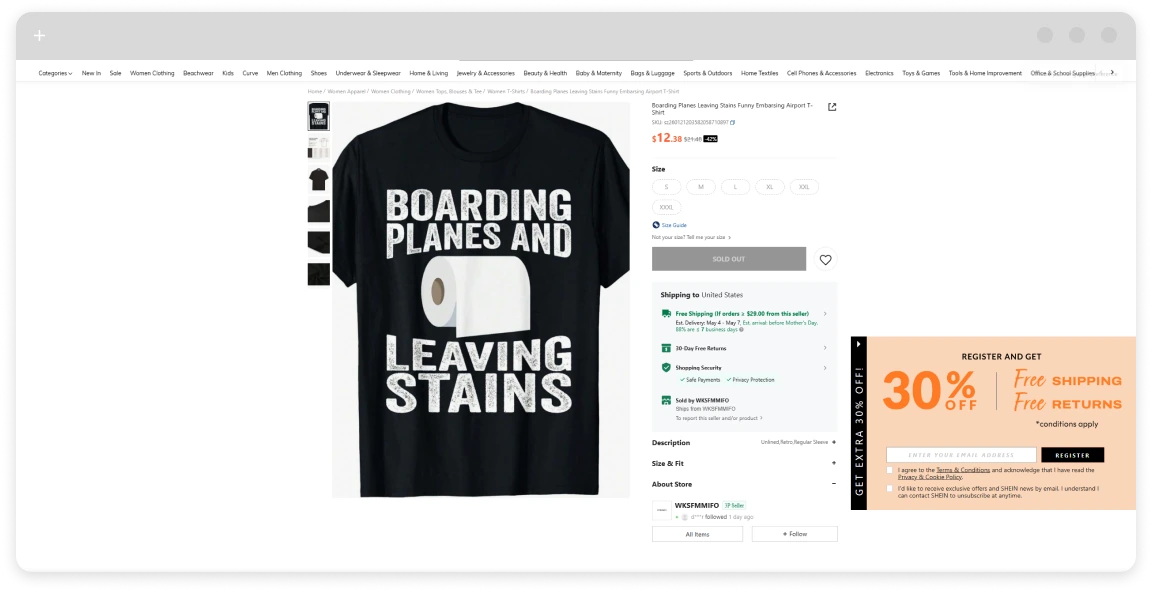
Why Shein Ads Are So Annoying
Shein ads stand out for several reasons that make them particularly irritating:
- High Frequency
Many users report seeing the same ad (or very similar ones) 10–20 times per day. - Clickbait & Over-the-Top Style
Dramatic claims like “Last chance – 90% off!” or flashy “haul” videos that feel manipulative. - Dark Patterns in Games
Fake system notifications (“You won free shipping!”) inside mobile games that trick users into clicking. - Push Notifications
If you have the Shein app installed, it can send frequent promotional alerts. - Retargeting That Doesn’t Stop
Even after you’ve already bought something, the ads often continue.
This combination of repetition, aggressive design, and intrusive placement makes Shein ads feel harder to escape than most other advertising.
Where Shein Ads Appear Most Often
Shein ads are strategically placed where people spend the most time:
- Instagram & Facebook
Feed ads, Stories, and Reels (often from Shein or micro-influencers). - TikTok
Short native videos that blend in with regular content. - YouTube
Pre-roll and mid-roll video ads before gaming, fashion, or haul videos. - Mobile Games
Interstitial ads and rewarded video prompts that interrupt gameplay. - Google Search & Display Network
Retargeting banners after visiting shein.com or related fashion sites. - Inside the Shein App
Promotional pop-ups and push notifications promoting flash sales.
The cross-platform retargeting is what makes them feel inescapable — one action on TikTok can trigger ads on Instagram and YouTube shortly after.
How to Block Shein Ads
Here are the most effective methods, ranked from easiest to most powerful. Combining several usually gives the best results.
1. Use a Professional Ad Blocker (Most Effective)
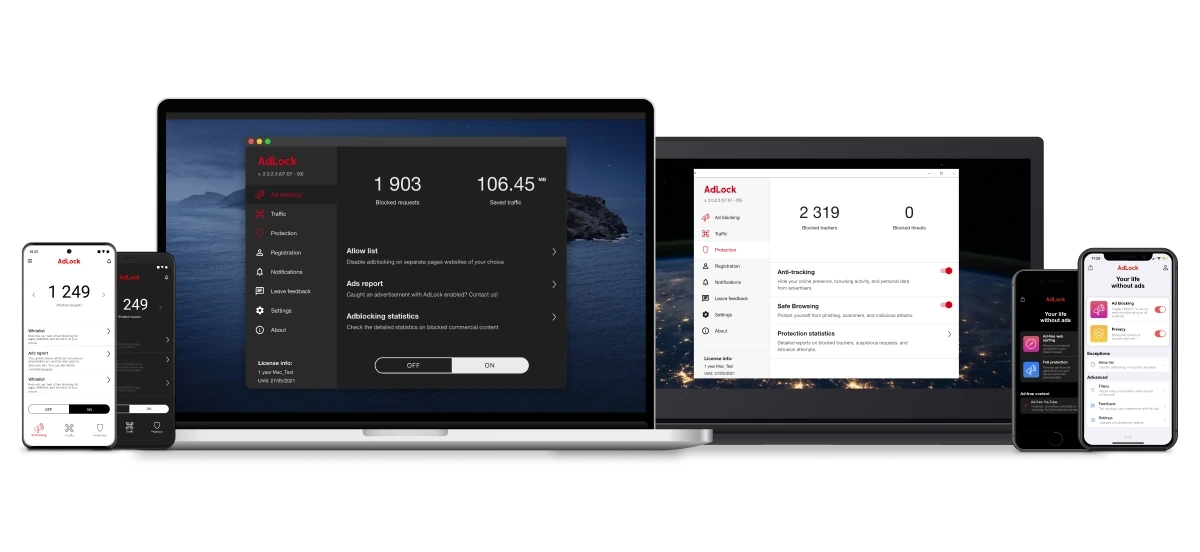
The quickest and most reliable way to block Shein ads across all platforms is using a system-wide ad blocker. A real one, a standalone application that is not a part of the acceptable ads program.
AdLock is one of the strongest options because it works at the network level, blocking banners, video ads, pop-ups, and tracking scripts used by Shein and its ad partners. Unlike regular browser extensions, AdLock also works inside mobile apps and games, giving you consistent protection.
How to set it up:
- Go to adlock.com and download the version for your device;
- Install and enable ad blocking (the main toggle);
- Open whatever app you had lots of Shein ads on — they should disappear or appear much less frequently.
For detailed setup instructions, see our Android ad blocker APK and iOS ad blocker.
2. Block Shein Ads on Instagram and Facebook
While you can hide individual ads, Meta’s algorithm often brings them back. Still, you can reduce frequency by:
- Going to Settings → Ads → Ad Topics and hiding “Fashion”, “Shopping”, or “Clothing”;
- Marking every Shein ad as “Not interested” or “Hide ad”;
- Turning off personalized ads in your Meta account settings.
However, for complete removal, an ad blocker remains the most effective solution.
3. Stop Shein Ads on YouTube
YouTube is one of the biggest sources of Shein video ads. Effective options include:
- YouTube Premium (paid, completely ad-free);
- Using a strong ad blocker like AdLock or uBlock Origin on desktop;
- Switching to Brave Browser, which has built-in ad blocking.
AdLock is especially good here because it has a custom-made YouTube player, which looks and feels exactly like the YouTube mobile app, but blocks pre-roll ads, interstitials, and other pesky commercials from your videos.
4. Remove Shein Ads on Android and iPhone
- Android: Install a system-wide ad blocker (AdLock recommended). Also, reset your Advertising ID (Settings → Google → Ads → Reset advertising ID) to weaken retargeting.
- iPhone: Use AdLock for iOS or enable “Limit Ad Tracking” (Settings → Privacy & Security → Apple Advertising). Reset the Advertising Identifier for better results.
These steps significantly reduce how often Shein ads appear on your phone.
5. Disable Shein App Notifications
If you have the Shein app installed and it’s sending too many push notifications:
- Android: Settings → Apps → Shein → Notifications → Turn off all notifications.
- iOS: Settings → Notifications → Shein → Turn off “Allow Notifications”.
This stops promotional alerts about flash sales and discounts.
6. Block Shein Ads on Google Search & Display
Go to adssettings.google.com and:
- Turn off “Personalized ads”;
- Search for “Shein” in the advertisers list and block them where possible.
This reduces Shein ads in Google’s Display Network, though it won’t stop all retargeting completely.
Why Ad Blockers Are the Most Reliable Solution
While adjusting settings and disabling notifications helps reduce Shein ads, the most consistent and powerful solution is a good ad blocker. AdLock stands out because it works at the system level — blocking Shein ads not only in browsers, but also inside mobile apps, games, and on YouTube. It also prevents tracking scripts that fuel aggressive retargeting, giving you better privacy and a noticeably cleaner experience across the internet.
Conclusion
Shein ads are extremely persistent due to heavy retargeting and a massive marketing budget. They appear on Instagram, Facebook, YouTube, mobile games, and Google Display, often making users feel constantly followed.
The most effective ways to block Shein ads are using a strong ad blocker like AdLock, adjusting privacy settings, and resetting your advertising ID. For the best results, combine several methods — especially AdLock with personalized ads turned off.
Install AdLock today and take back control of your feed. Enjoy a much cleaner, less annoying internet — free from relentless Shein ads.

Latest news

Government Spyware Is Now Delivered Through Online Ads

How to Block Annoying Ads on Business Insider Once and For All

How to Block Annoying Ads on Bloomberg Once and For All

How to Block Annoying Ads on Los Angeles Times Once and For All

How to Block Annoying Ads on New York Post Once and For All