How to Block Annoying Ads on Bloomberg Once and For All
You open a Bloomberg article to check one market story, and the page fights back. A video ad autoplays in the corner. Banners load between the paragraphs. Read a couple of stories and the paywall slides up asking you to subscribe. Checking the news turns into a chore.
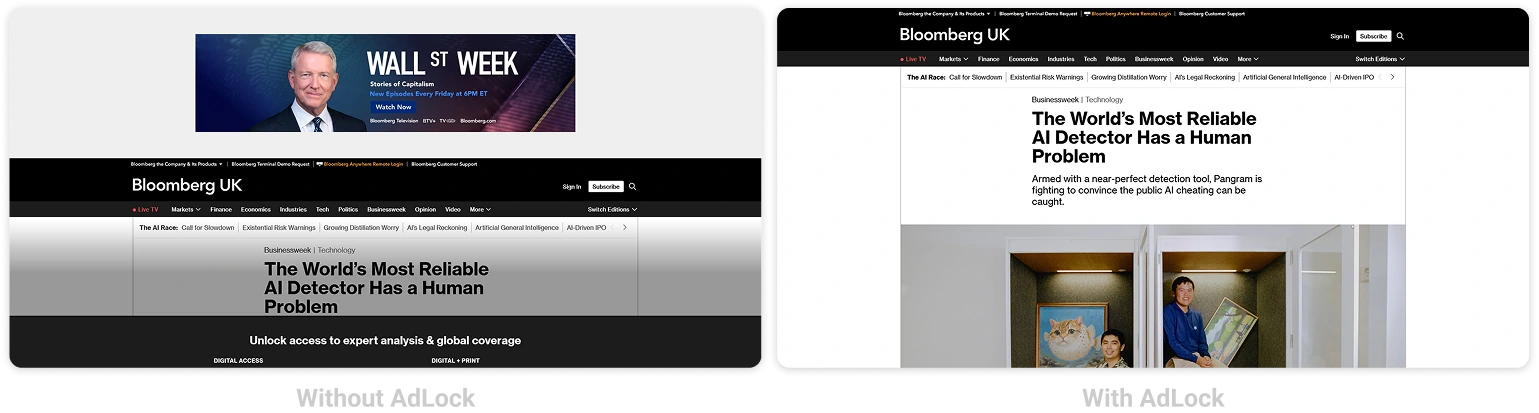
Most of that clutter can be cleared. This guide covers every working way to block Bloomberg ads — on the website in Chrome, Safari, Firefox, and Edge, and on mobile for Android and iPhone. A reliable ad blocker like AdLock does most of the work for you.
Read Bloomberg without the ad clutter — AdLock wipes out autoplay video and banners.
One thing to be clear about up front: Bloomberg runs a metered paywall, and that’s separate from advertising. An ad blocker strips out the ads, autoplay video, and tracking. It does not unlock paywalled subscriber articles, and we won’t pretend it does.
Contents
- How to Stop Annoying Ads on Bloomberg
- How to Block Ads on Bloomberg Website
- How to Block Ads on Bloomberg App (Android & iOS)
- How to Stop Bloomberg Pop-Up Ads and Notifications
- Why Use AdLock as Your Bloomberg Ad Blocker
- Final Thoughts
- Frequently Asked Questions
How to Stop Annoying Ads on Bloomberg
Bloomberg’s ad load is heavier than a typical news site. It stacks several formats at once: autoplay financial video, sticky banners, sponsored “market insight” blocks, and retargeting scripts that trail you afterward. The right fix depends on the device you read on.
Here’s what this guide covers:
- Blocking ads on the Bloomberg website (Chrome, Safari, Firefox, Edge)
- Blocking ads on mobile (Android and iOS)
- Stopping Bloomberg pop-ups and notifications
- Using AdLock to cover every device at once
How to Block Ads on Bloomberg Website
AdLock Standalone App (Desktop — Recommended)
On desktop, the cleanest option is the AdLock app for Windows or Mac. Because it filters ad traffic at the network level, a single install covers Chrome, Firefox, Edge, and Safari together — you never juggle a separate extension per browser.
- Grab AdLock for Windows or macOS from adlock.com
- Enter your license key to activate
- Filtering runs from the start — open Bloomberg and it’s already clean
Chrome
Want something lighter? The ad blocker for Chrome clears Bloomberg’s banners, video, and pop-ups right after you add it. Keep in mind it only covers Chrome itself — other browsers and apps stay unprotected.
Safari
Mac and iPhone users can grab AdLock from the App Store, then switch it on under Safari > Settings > Extensions (macOS) or Settings > Safari > Content Blockers (iPhone and iPad). From there, Safari strips Bloomberg’s ads while the page loads.
Firefox
Firefox handles the AdLock extension exactly like Chrome does. Add it, flip it on, and Bloomberg loads without its banners or video spots from the very first visit.
Edge
On Edge, your best bets are the HOSTS file trick or the browser’s own tracking prevention. We lay out each step in our walkthrough on how to block ads on Microsoft Edge.
How to Block Ads on Bloomberg App (Android & iOS)
There’s no switch inside the Bloomberg app to turn ads off — it’s ad-supported by design. Clearing them means filtering traffic at the system level instead.
Android
AdLock for Android sets up a local VPN and filters traffic app by app, the Bloomberg app included.
- Install AdLock from Google Play (search AdLock: Adblocker & Privacy) or straight from adlock.com
- Allow the VPN connection when Android asks
- Add the CA certificate so HTTPS traffic gets filtered — AdLock walks you through it
- Activate with your license key
- Launch Bloomberg — the banners and video are gone
That one setup handles the Bloomberg app, your mobile browser, and everything else installed on the phone.
iOS (iPhone and iPad)
Pick up AdLock for iPhone from the App Store and turn it on under Settings > Safari > Content Blockers — the same steps work on iPad. For the tidiest result, open Bloomberg in Safari instead of the native app, since Apple’s sandbox caps how much in-app filtering can do.
How to Stop Bloomberg Pop-Up Ads and Notifications
Those “Allow Notifications?” prompts and breaking-market alerts aren’t display ads — they’re a separate permission. Grant it once, even by mistake, and Bloomberg keeps pinging you until you take it back.
- Chrome: open chrome://settings/content/notifications, locate bloomberg.com, and set it to Block
- Safari (Mac): Safari > Settings > Websites > Notifications, find Bloomberg, choose Deny
- Safari (iPhone/iPad): Settings > Safari > Notifications, switch Bloomberg off
- Firefox: open about:preferences#privacy, hit Settings beside Notifications, delete bloomberg.com
That silences the alerts and the permission prompts. On-page display ads are a different beast — you’ll still want an ad blocker for those.
Why Use AdLock as Your Bloomberg Ad Blocker
Plenty of blockers stop the obvious banners but leave the embedded financial video and sponsored “insight” panels that make Bloomberg feel heavy. AdLock catches those as well, autoplay video included, which lighter tools often wave through.
On top of that, it kills the tracking scripts behind the retargeted ads that chase you across the web. Since AdLock operates at the network and JavaScript layer rather than as a browser add-on, the Manifest V3 shake-up that hobbled a lot of extension-based blockers passed it by. And with all those heavy ad elements never loading, pages open faster and eat less mobile data — a real difference on a site as dense as Bloomberg.
None of this is Bloomberg-only, either. The same AdLock install strips ads across other news sites, apps, and games on your device.
Read Bloomberg without the ad clutter — AdLock wipes out autoplay video and banners.
Final Thoughts
For most readers, this is the combination that works:
- Desktop (any browser): the AdLock app for Windows or macOS
- Chrome only: the free AdLock Chrome extension
- Safari on Mac or iPhone: AdLock with content blockers switched on
- Android: AdLock for Android, covering app and browser together
- iOS: AdLock content blockers, with Bloomberg open in Safari
- Notifications: block bloomberg.com in your browser settings
Work through each layer and Bloomberg turns readable again. Just keep in mind the paywall stands apart — an ad blocker hands you a clean page, not free subscriber stories.
Ready for news without the noise? Get AdLock and read Bloomberg the way it should be.
Frequently Asked Questions
Can I block ads on Bloomberg for free?
The AdLock extensions for Chrome and Safari cost nothing and clear ads on the Bloomberg site in those browsers. For full mobile coverage — including in-app filtering on Android — you’ll need the premium version.
Will an ad blocker get me past the Bloomberg paywall?
No. Ads, autoplay video, and trackers go; the paywall stays. Bloomberg’s subscription gate is a separate system that AdLock leaves untouched.
Can AdLock disable video pop-ups on Bloomberg?
Yes — autoplay and pop-up video ads that slip past lighter blockers get filtered by AdLock on both desktop and mobile.
How do I read Bloomberg without ads on iPhone?
Install AdLock for iOS, enable its content blockers under Settings > Safari > Content Blockers, and open Bloomberg in Safari rather than the app for the cleanest read.
Why should I avoid unreliable ad-blocking extensions?
Some free extensions from unknown developers quietly inject their own ads or scrape your browsing data. A trusted blocker won’t trade one annoyance for a worse one.

Latest news
How to Block Annoying Ads on Business Insider Once and For All

How to Block Annoying Ads on Los Angeles Times Once and For All

How to Block Annoying Ads on New York Post Once and For All
How to Block Annoying Ads on Reuters Once and For All

How to Block Annoying Ads on The Telegraph Once and For All