How to Remove Ads from Streamex
Streamex has earned a loyal following for one simple reason: it’s free, there’s no sign-up, and the library is huge. But anyone who’s spent more than ten minutes on the platform knows the tradeoff. The content is easy to reach — the ads standing in front of it are not.
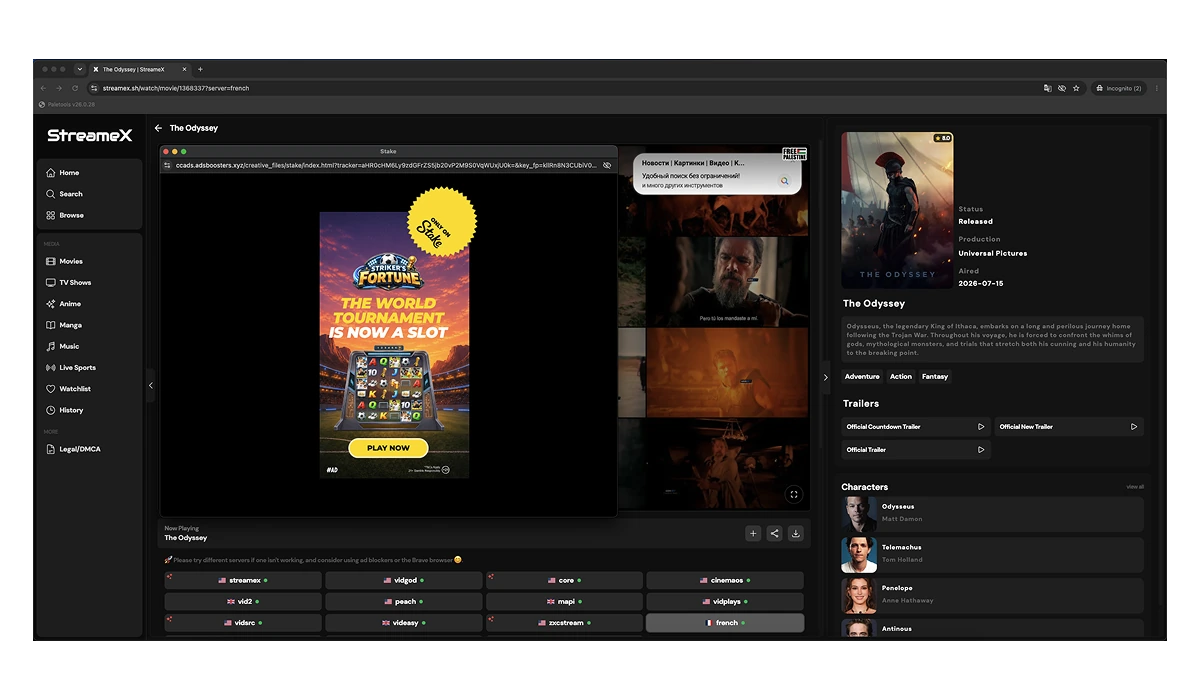
Users consistently praise Streamex for access and consistently criticize it for the same handful of problems: pop-up ads that fire when you least expect them, redirects that throw you onto random third-party sites, and an ad-heavy playback flow where tapping play or skipping forward can trigger a fresh ad. On the app it’s worse — some users report an ad on nearly every interaction.
This guide shows you how to cut that noise down to almost nothing, on whatever device you’re using — desktop, Android, or iPhone.
Remove Ads from Streamex
Say goodbye to redirects and popup ads. AdLock keeps videos clean and smooth
Why Streamex Has So Many Ads
The short version: Streamex is free because ads pay for it. There’s no subscription, no account, no paywall — so advertising is the only thing funding the servers and the content library. That’s a legitimate model, and plenty of free streaming services run on it.
The problem with Streamex specifically isn’t that ads exist — it’s how they’re delivered. Instead of clean, occasional ad breaks, users run into aggressive pop-ups, redirects, and interruptions triggered by ordinary actions. Pressing play can open an ad. Skipping ahead can open an ad. Pausing can open an ad.
The app version takes this further. Some users describe it as feeling like an ad platform with a video player attached, rather than a streaming app that happens to show ads. When nearly every tap surfaces something you didn’t ask for, the experience stops being “free with ads” and starts being genuinely frustrating.
What Kind of Ads Do Streamex Users See?
Not all Streamex ads work the same way. Knowing which type you’re dealing with helps you understand why blocking them takes more than closing a window:
- Pop-up ads — The most common complaint. These spring up when you click anywhere on the page or when the player launches. Close one and another often waits behind it.
- Redirect ads — Instead of loading your movie, a click sends you to an external site entirely — usually something you’d never visit on purpose. You hit back, and sometimes it happens again.
- Interstitial ads — Full-screen ad inserts that appear between your actions, blocking the whole screen until they’re dismissed or a timer runs out.
- Playback ads — Ads inside or wrapped around the video player itself, interrupting the content you actually came to watch.
- Push / notification requests — Prompts asking permission to send notifications. Grant them once and they turn into a steady stream of spam, even after you’ve left the site.
- App ads — Specific to the Android version, where some users report the app becomes almost unusable — ads surfacing on nearly every interaction rather than at natural breaks.
How to Remove Ads from Streamex on Desktop
Desktop is the easiest environment to clean up, because you have the most control over the browser. Here are three approaches, from most to least effective.
1. Use a Browser Ad Blocker
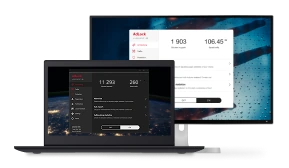
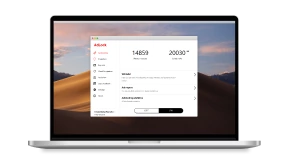
The single most effective step. A dedicated ad blocker extension sits between the page and your screen, filtering ad requests before they load. For Streamex specifically, this kills most pop-ups and playback ads outright, and blocks many of the scripts that trigger redirects.
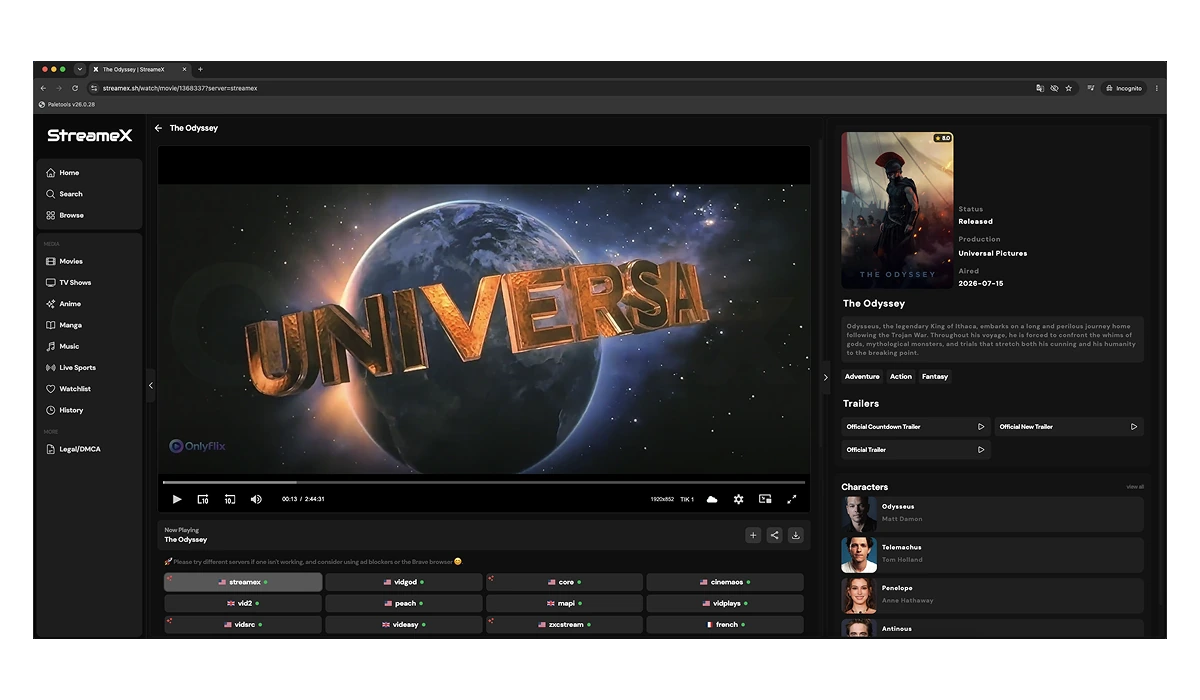
Install the blocker, enable it, then reload Streamex. The difference is immediate — the player loads cleanly and the constant interruptions stop.
2. Block Pop-Ups in Browser Settings
Every major browser has a built-in pop-up blocker, and it’s worth turning on as a second layer. In Chrome, go to chrome://settings/content/popups and set it to block. In Firefox, it’s under Settings → Privacy & Security → Permissions → Block pop-up windows. In Edge, it’s Settings → Cookies and site permissions → Pop-ups and redirects.
This won’t catch everything Streamex throws at you — many of its pop-ups are triggered by clicks, which browsers treat as “user-initiated” and allow through — but it reduces the volume.
3. Use a Privacy Browser
Browsers like Brave block ads and trackers by default, without extra setup. Opening Streamex in Brave rather than standard Chrome removes a good chunk of the ad load automatically. It’s not a complete fix for Streamex’s most aggressive redirects, but combined with an ad blocker it makes the site genuinely watchable.
How to Remove Ads from Streamex on Android
Android is trickier because the problem isn’t only in the browser — the Streamex app itself is a major source of ads. Browser extensions don’t exist on mobile Chrome, so you need different tools.
1. Use a System-Wide Ad Blocker
This is the key step on Android. A system-wide ad blocker for Android filters ad traffic across your entire device — not just one browser, but every app, including the Streamex app. It works at the network level, intercepting ad requests before they reach the app or browser at all.
This is the only approach that addresses the app version’s ad problem, since there’s no way to install a browser extension inside the Streamex app. With a system-wide blocker running, the flood of ads on every tap drops dramatically.
2. Turn Off Notification Permissions
If you’ve ever tapped “Allow” on a Streamex notification prompt, revoke it. Go to Settings → Apps → Streamex (or your browser) → Notifications, and turn them off. For the browser, go to Chrome → Settings → Site Settings → Notifications and remove permission for any Streamex domain. This stops the push-notification spam that outlives your browsing session.
3. Use Private DNS
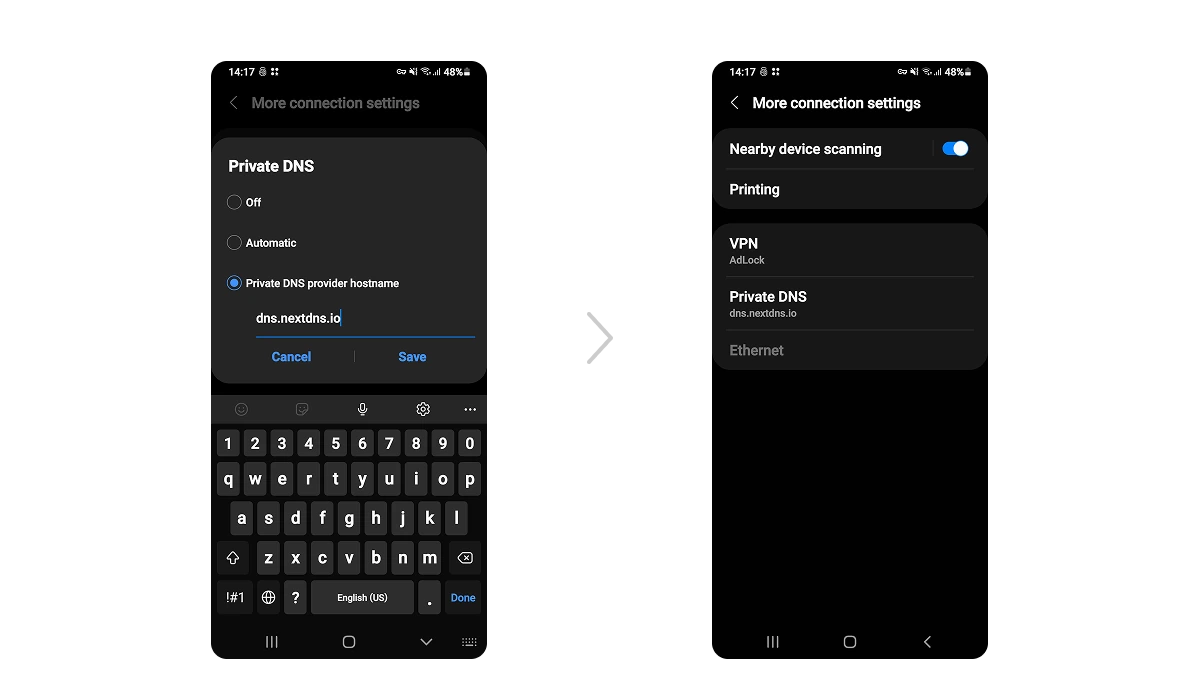
Android has a built-in Private DNS feature that can block ad domains network-wide, no app required. Go to Settings → Network & Internet → Private DNS and enter a filtering DNS provider’s hostname. This blocks many ad and redirect domains before they load. It won’t catch everything Streamex serves, but it’s a solid free layer that runs across the whole device.
How to Remove Ads from Streamex on iPhone
iPhone gives you strong tools through Safari’s content blocking system and iOS-level filtering.
1. Use AdLock for iOS
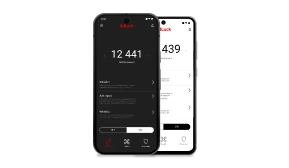
The most complete solution on iPhone. AdLock for iOS works as a content blocker and network filter, removing ads across Safari and filtering ad traffic system-wide. For Streamex, this handles the pop-ups and playback ads that Safari’s built-in tools miss, and cuts off many redirect scripts before they fire.
2. Enable Safari Content Blocking
Safari on iOS supports content blockers natively. Once you’ve installed a content blocker like AdLock, enable it under Settings → Safari → Extensions (or Content Blockers) and toggle it on. This lets Safari filter ads directly as pages load, which noticeably cleans up the Streamex browsing experience.
3. Remove Notification Access
Same principle as Android. If Streamex or a browser has notification permission, revoke it: Settings → Notifications → find the app → turn off Allow Notifications. And in Safari, go to Settings → Safari → Advanced → Website Data if you want to clear any lingering permissions Streamex domains have set.
Why Some Ads Keep Coming Back
Even after setting up a blocker, you might occasionally still see something slip through on Streamex. Here’s why.
Streamex relies heavily on external ad networks and redirect chains — ads served from constantly rotating third-party domains, and clicks routed through a sequence of URLs before landing you somewhere. A single browser filter sometimes can’t close every one of those paths, because a new domain the filter hasn’t seen yet can appear at any time.
There’s also the structural issue: Streamex pages are built around an ad-heavy flow. In some cases, clicking on the player doesn’t just play the video — it opens a fresh ad session in the background. That’s not a single ad you can block once; it’s a behavior baked into how the page responds to interaction. This is exactly why a network-level or system-wide blocker outperforms a simple browser toggle — it filters the traffic wherever it comes from, rather than trying to catch each pop-up individually.
Can You Watch Streamex Without Ads?
Honest answer: completely ad-free is nearly impossible on Streamex unless you’re using a blocker. The platform is funded by advertising, and it’s engineered to surface those ads persistently. There’s no built-in “remove ads” button and no paid tier that turns them off.
That said, you can get very close to ad-free. If you want the minimum possible interruptions, combine these:
- A browser with an ad blocker installed
- A system-wide ad blocker (essential on Android and for the app)
- Notifications disabled for Streamex
- A private DNS filter running on your device
Best Solution by Device
| Scenario | Best solution |
|---|---|
| Desktop browser | AdLock for Windows or macOS |
| Android app | AdLock for Android + Private DNS |
| iPhone / Safari | AdLock for iOS + Safari content blocking |
| Push notification spam | Revoke notification permissions |
| Most aggressive pop-ups | Use privacy browser + AdLock |
Conclusion
Streamex delivers on its core promise — free movies and shows with no sign-up — but it pays for that with some of the most aggressive advertising on any free streaming platform. The app version especially pushes ads far past the point of “closing a little window,” turning ordinary taps into ad triggers.
Standard browser settings help, but they weren’t built for the redirect chains and click-triggered pop-ups Streamex uses. The reliable fix is a proper ad blocker working at the network level, across your browser and your apps.
Install AdLock for a comfortable, interruption-free Streamex experience — on desktop, Android, or iPhone.

Similar news

How to Uninstall Total Adblock and Find a Better Alternative (2026)
Best AdGuard Alternatives in 2026 (Free and Paid)

How to Block Ads on Dailymotion (Browser + Mobile App)

How to Bypass Ad Blocker Detection: Methods That Still Work
Spotify Ad Blocker: Block Spotify Ads Without Premium