How to Block Ads in Block Blast on Android and iOS

Block Blast ads are the one thing standing between you and a perfectly relaxing puzzle session. The game itself is solid — think Tetris without the panic, where you pick pieces from a row below instead of dodging falling blocks. But the ads are relentless. This article covers every practical way to play Block Blast with no ads, from a 10-second trick to a permanent fix that works across all your apps.
Stop Block Blast from Blasting You with Ads
Clear your screen, save your patience. AdLock blocks ads in Block Blast and beyond
Does Block Blast Have Ads?
Yes — and it’s not subtle about it. Block Blast runs three types of ads, and they show up at every stage of the game:
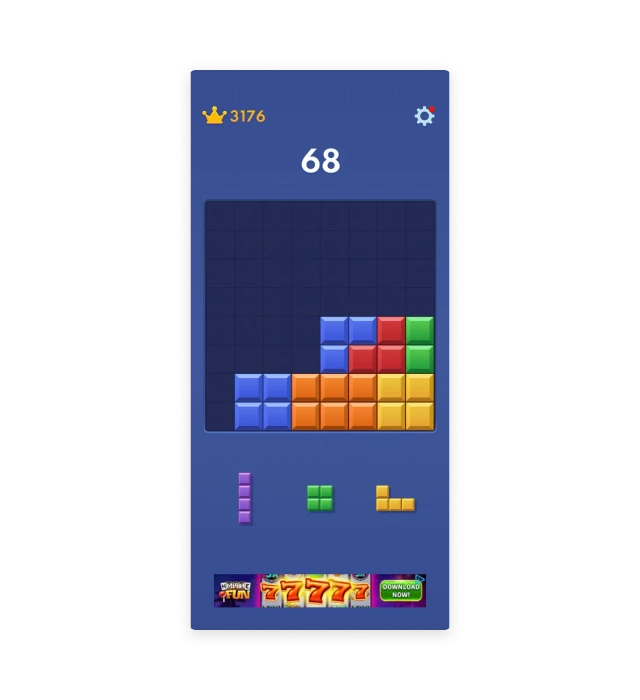
- Animated banner: A persistent banner sits at the bottom of the screen throughout gameplay, usually cycling through casino-style promotions.
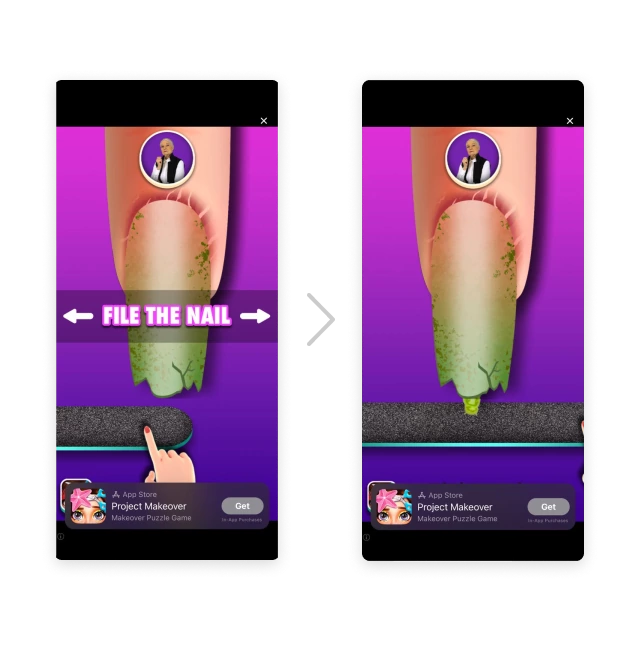
- After-level video ad. After every game, a full-screen video ad plays. Skipping is limited, and the ads tend to be for other mobile games.
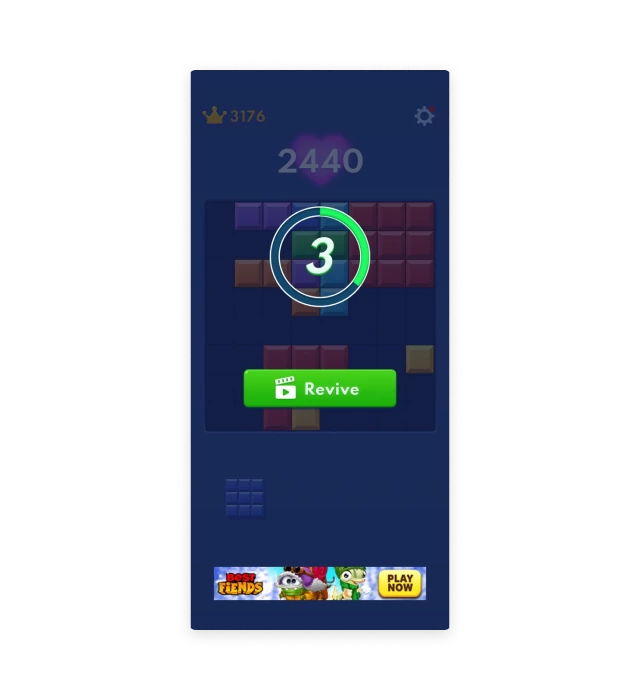
- Forced revive ads. When you lose, Block Blast offers to revive your game if you watch an ad. Decline, and it plays a shorter ad anyway — unskippable, no reward. You get the worst of both options regardless of what you choose.
Block Blast doesn’t offer a built-in “remove ads” purchase. So if you want a Block Blast ad-free experience, you have to handle it yourself.
Blocking Ads in Block Blast on Android
Two free methods work on Android. Neither is perfect, but both can meaningfully cut the interruptions.
1. Enable airplane mode
Enable airplane mode before launching Block Blast. This cuts the internet connection before the app can fetch ads. The key is timing — if the game is already open when you switch it on, cached ads may still appear.
How to play Block Blast with no ads using airplane mode:
- Swipe down from the top of your screen to open quick settings
- Tap the airplane icon to enable airplane mode
- Launch Block Blast and play without ads
- Disable airplane mode when you’re done to restore connectivity
Downside: no internet means no cloud saves and no online features during that session.
2. Use a modded APK
A modded APK is a modified version of Block Blast with ads stripped out. It works, but comes with real risks — security vulnerabilities, no official updates, and it violates the game’s terms of service. Download only from sources you actually trust, and understand you’re doing this at your own risk.
How to get Block Blast without ads APK:
- Enable “Install from unknown sources” in your device settings
- Download the modded APK from a reputable source
- Install the APK and launch the game
- Expect no official updates and possible loss of online features
Blocking Ads in Block Blast on iOS
iOS is more locked down than Android, so the modded APK route isn’t an option without jailbreaking. The one free method that works reliably is airplane mode.
To use airplane mode on iOS:
- Swipe down from the top-right corner of your screen (or up from the bottom on older models) to open Control Center
- Tap the airplane icon to enable airplane mode
- Open Block Blast and play without ads
- Turn off airplane mode when you’re finished
Same rule as Android: enable it before opening the game, not after.
Using VPN to Play Block Blast Without Ads
A VPN can reduce Block Blast ads by routing your traffic through a region where fewer ads are served. It won’t eliminate them entirely — that’s not what VPNs do — but some users notice fewer interruptions with certain server locations.
How to get rid of ads on Block Blast using VPN on iOS:
- Download a reputable VPN app from the App Store
- Connect to a server in a different country
- Launch Block Blast and see if the ad frequency drops
- Try different server locations — results vary significantly
How to remove ads from Block Blast using a VPN on Android:
- Choose a reliable VPN service and download their app from the Google Play Store
- Open the app and select a server location
- Connect to the VPN server
- Open Block Blast and play
This is a reduction strategy, not a complete solution — you’ll likely still see some ads. There’s also a latency trade-off. If you notice lag, try connecting to a server closer to your actual location.
Using AdLock to Play Block Blast Without Ads
AdLock is the most reliable way to get Block Blast ad-free without giving up your internet connection. It works at the network level — blocking ad requests before they reach the app — so it handles all three ad types Block Blast throws at you: banners, post-game videos, and forced revive ads.
Unlike a browser extension, AdLock operates system-wide across all browsers and apps on the device simultaneously. That means it also blocks ads in other games running alongside Block Blast.
Play Block Blast with no ads on iOS with AdLock:
- Download AdLock for iPhone from the App Store
- Go to Settings > Safari > Extensions and switch on all AdLock toggles
- Launch AdLock and enable “Ad-free web surfing” for system-wide blocking
For full system-wide ad blocking — which is what covers Block Blast specifically — the Premium plan is required.
How to play Block Blast without ads on Android with AdLock:
- Download AdLock for Android from the official website (not available on Google Play)
- Open the app and navigate to Settings
- Check for and install any available updates
- Install the HTTPS certificate for full filtering
- Verify your identity when prompted and select a subscription plan
Once set up, AdLock runs in the background and filters ad traffic across all apps — Block Blast included. Your internet connection stays on, cloud saves keep working, and the game runs normally without the ad interruptions.
Stop Block Blast from Blasting You with Ads
Clear your screen, save your patience. AdLock blocks ads in Block Blast and beyond
Frequently Asked Questions
Does Block Blast have ads?
Yes. Block Blast runs three types of ads: a persistent animated banner at the bottom of the screen during gameplay, a full-screen video ad after every game, and a forced short ad when you lose — even if you decline the optional revive offer.
Is there a Block Blast ad-free version?
There’s no official “remove ads” purchase inside Block Blast. To play Block Blast ad free, you need to use airplane mode, a modded APK (Android only, security risks apply), or a system-level ad blocker like AdLock.
How do I play Block Blast with no ads on Android?
The quickest free option is enabling airplane mode before opening the game. For a permanent fix that keeps your internet connection active, AdLock for Android blocks ads system-wide — including the banners and video ads Block Blast serves between rounds.
How do I block Block Blast ads on iPhone?
On iOS, airplane mode works if you enable it before launching the game. For a solution that doesn’t cut your connection, AdLock for iPhone handles system-wide ad blocking that covers in-app ads like the ones Block Blast serves.
Does airplane mode stop all Block Blast ads?
Usually yes. Most ads in Block Blast require an active internet connection to load. Enable airplane mode before launching the app — not after — because the game caches ads on startup if it connects first.
Does a VPN remove Block Blast ads?
A VPN can reduce the number of ads by routing your traffic through a region with lower ad inventory, but it won’t eliminate them entirely. It’s a partial fix, not a complete solution.
Conclusion
There you have it — every practical way to block Block Blast ads on Android and iOS. Whether you go with airplane mode for a quick offline session, take your chances with a modded APK, or set up AdLock for a permanent ad-free fix, the choice is yours. Now go clear some blocks in peace.
Similar news
How to Uninstall Total Adblock and Find a Better Alternative (2026)

How to Bypass Ad Blocker Detection: Methods That Still Work
Best AdGuard Alternatives in 2026 (Free and Paid)

Spotify Ad Blocker: Block Spotify Ads Without Premium
AdGuard vs. uBlock Origin: The Ultimate Ad Blocker Comparison