How to Stop Ads on BeeTV on Android and Firestick
BeeTV floods every session with pop-ups, interstitial ads, and banner overlays. The quickest fix is a system-wide ad blocker — it covers BeeTV and every other app on the device at the same time, no APK swaps required. Below are all the methods that actually work, ranked from safest to riskiest.
What Kinds of Ads Does BeeTV Show?
Before picking a method, it helps to know what you’re blocking. BeeTV typically serves three types of ads:
- Interstitial pop-ups — full-screen ads that appear when you tap a title or try to play a stream. These are the most disruptive.
- Banner ads — persistent overlays at the top or bottom of the screen while you browse.
- Redirect ads — taps that open a browser or a third-party app instead of the content you wanted. These can lead to unsafe sites.
The type matters because in-app settings can only suppress some of these, while a network-level blocker stops all three.
Method 1: Adjust App Settings (Limited Effect)
These steps reduce friction without blocking ads entirely — think of them as damage control, not a solution.
- Disable BeeTV notifications — go to Android Settings → Apps → BeeTV → Notifications and turn them all off. This stops promo notifications from appearing on your lock screen.
- Restrict background data — Settings → Apps → BeeTV → Mobile data → disable Background data. Some ad networks load ads in the background; cutting their access helps a little.
- Clear cache regularly — Settings → Apps → BeeTV → Storage → Clear cache. Ad tracking relies partly on cached data; clearing it resets some targeting.
None of this removes ads. Pop-ups and interstitials will still appear. For those you need one of the methods below.
Method 2: Use an Ad Blocker (Most Reliable)
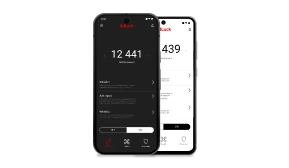
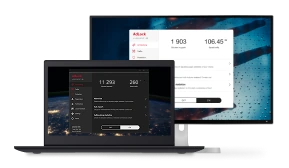
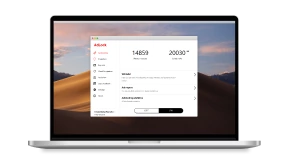
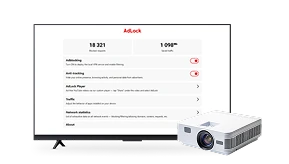
A system-wide ad blocker works at the network level — it intercepts ad requests before they reach BeeTV, so pop-ups and redirects never load. AdLock for Android does exactly this: it filters traffic from every app on the device, not just one browser.
What that means in practice:
- Pop-ups and interstitials in BeeTV stop loading.
- Redirect taps go nowhere instead of dumping you in a browser.
- Banner ad requests are blocked before they consume your data.
- Every other app on the same device benefits — streaming, browsing, games.
AdLock is available on Google Play (search for AdLock: Adblocker & Privacy) and as a direct APK download from adlock.com. Once installed, enable filtering and open BeeTV — the difference is immediate.
On Firestick: Fire OS is Android-based, so the same principle applies. Sideload AdLock via the Downloader app (enable Apps from Unknown Sources in Firestick settings first), then run it as you would on any Android device. The AdLock for Android TV version is built for TV interfaces and works well on Firestick.
Method 3: DNS-Level Blocking
If you’d rather not install an app, you can block ad domains at the DNS level. NextDNS lets you set a custom DNS resolver that refuses to resolve known ad and tracking domains — effectively cutting off ad networks before they connect.
To set it up on Android: Settings → Network & Internet → Private DNS → enter your NextDNS hostname. On Firestick, set the DNS addresses manually in your Wi-Fi network settings. The free NextDNS plan covers most use cases.
DNS blocking is less thorough than a dedicated app — it won’t catch ads served from the same domain as the content — but it’s lightweight and works passively across all apps without any configuration per app.
Method 4: Modded APK — Why It’s Risky
“BeeTV no ads APK” and “BeeTV Mod” versions circulate on various sites. They do remove ads, but:
- There is no way to verify what else the modified APK contains. Repackaged apps are a common delivery method for spyware and adware that run silently in the background.
- Modded versions don’t receive updates, so you’re locked to whatever version you installed — bugs included.
- If the mod was built from a version that already contained tracking code, removing the visible ads doesn’t remove the tracking.
The risk isn’t worth it when a legitimate ad blocker solves the same problem without touching BeeTV’s APK at all.
Alternatives If You’re Done With BeeTV
Some users reach a point where no amount of ad blocking makes BeeTV worth the friction. The reasonable alternatives split into two camps:
- Paid subscriptions (Netflix, Prime Video, Disney+) — no ads by design, stable apps, legal content. The obvious downside is the monthly cost.
- Free ad-supported services (Tubi, Pluto TV, Peacock free tier) — still show ads, but fewer of them and from legitimate ad networks, so redirect risks are minimal.
If you stay with BeeTV, pairing it with AdLock is the cleanest setup: free streaming without the ad interruptions.
FAQ
Does BeeTV have ads?
Yes. BeeTV shows pop-up interstitials, banner overlays, and redirect ads. They appear when you tap titles, browse categories, and sometimes during playback depending on the stream source.
How do I stop ads on BeeTV on Firestick?
Sideload AdLock for Android TV on your Firestick using the Downloader app. Once AdLock is running, it filters ad traffic system-wide, including inside BeeTV. You can also configure NextDNS as your Firestick’s DNS server for lightweight background blocking.
Is there an official ad-free version of BeeTV?
No official ad-free version exists at the time of writing. Some versions have offered donation-based upgrades that reduce ads, but availability varies and is not guaranteed.
Is the BeeTV no ads APK safe to download?
Generally, no. Modded APKs from unofficial sources can contain malware or spyware. They also don’t receive updates. A system-level ad blocker removes ads without modifying the app at all — that’s the safer path.
Will an ad blocker work for all types of BeeTV ads?
A network-level ad blocker like AdLock blocks pop-ups, banners, and redirect requests. Ads embedded directly inside a video stream (pre-roll or mid-roll from the stream host itself) may not be blockable, since they’re baked into the stream rather than loaded as separate requests.
Can I use AdLock on both my Android phone and Firestick?
Yes, but you need separate installs — one on each device. AdLock for Android covers phones and tablets; AdLock for Android TV is the right build for Firestick. Both are available from adlock.com.

Latest news

How to Get Rid of Ads on WEBTOON (Android, iPhone & Desktop)
How to Get Rid of Ads on Life360 (Android & iPhone)
How to Turn Off Ads on OnePlus (OxygenOS) — Full Guide
How to Get Rid of Ads on a Samsung Phone (One UI) in 2026

Government Spyware Is Now Delivered Through Online Ads