How to Get Rid of Ads on Life360 (Android & iPhone)
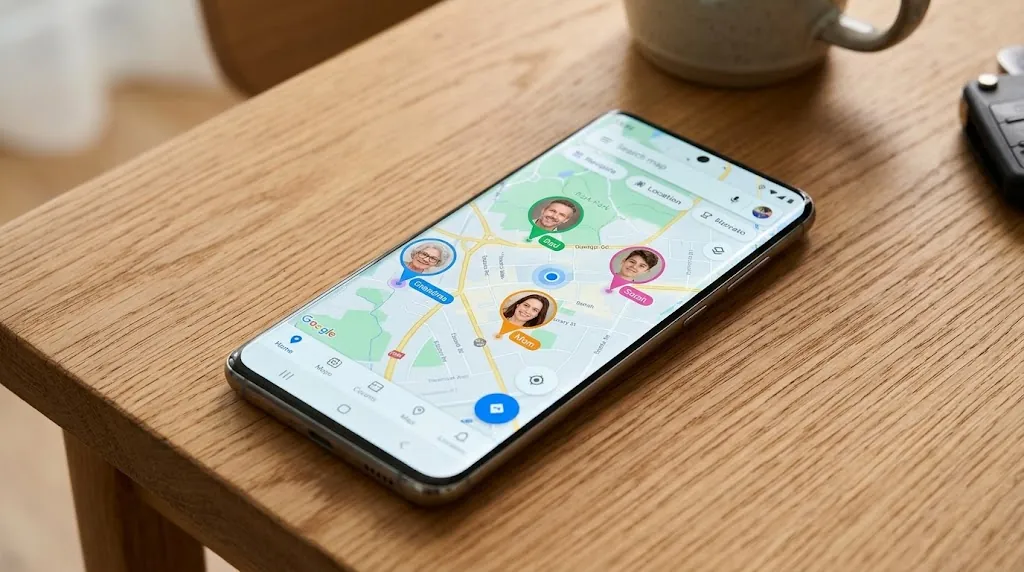
Life360 is a family-safety staple, but the free app has leaned harder into advertising over the past few years — banner ads on the map screen, full-screen pop-ups between actions, and increasingly personalized ads aimed at free users. For an app you open to check in on your family, the ads feel out of place.
Tired of ads in Life360? AdLock clears the in-app banner and pop-up ads on Android.
This guide covers how to cut those ads down: blocking them on Android with an ad blocker, turning off personalized ads inside the app, and the honest situation on iPhone. Let’s go device by device.
Contents
- Does Life360 Have Ads?
- Why Life360 Started Showing Ads
- How to Turn Off Personalized Ads in Life360
- How to Block Ads on Life360 on Android
- How to Get Rid of Life360 Ads on iPhone
- The Paid-Tier Option
- Why Use AdLock as Your Life360 Ad Blocker
- Final Thoughts
- Frequently Asked Questions
Does Life360 Have Ads?
Yes — the free tier of Life360 shows ads. The company rolled out advertising to its large free user base and has been expanding targeted, in-app ads since. If you’re on the free plan, you’ll see banner ads and occasional full-screen pop-ups; the paid memberships (Silver, Gold, Platinum) are positioned as the ad-free way to use the app.
Why Life360 Started Showing Ads
Most of Life360’s tens of millions of users are on the free plan, so advertising is how the company earns from them. More recently it has built out personalized advertising — ads targeted using the app’s own data rather than handed off to random third parties. That’s better for privacy than some ad networks, but it’s still advertising sitting on top of a family-safety app, and plenty of users would rather not see it.
How to Turn Off Personalized Ads in Life360
Before blocking anything, it’s worth turning off ad personalization inside the app — it won’t remove ads, but it limits how your data is used to target them.
- Open Life360 and go to Settings
- Look under the Privacy or Data controls section
- Turn off the personalized ads / data-for-ads option
This is a partial step: you’ll still see ads on the free tier, just less tailored ones. To actually clear the ads from view, you’ll want an ad blocker or a paid membership.
How to Block Ads on Life360 on Android
Android gives you the cleanest fix. AdLock for Android runs as a local VPN and filters ad traffic from every app on the phone, Life360 included — so the banner and pop-up ads stop reaching the app.
- Download AdLock from Google Play (search AdLock: Adblocker & Privacy) or from adlock.com
- Grant the VPN permission when prompted
- Install the CA certificate for HTTPS filtering — the app guides you through it
- Activate your license
- Open Life360 — the in-app ads are filtered out
Since it works system-wide, that one setup also clears ads in your browser and other apps on the device.
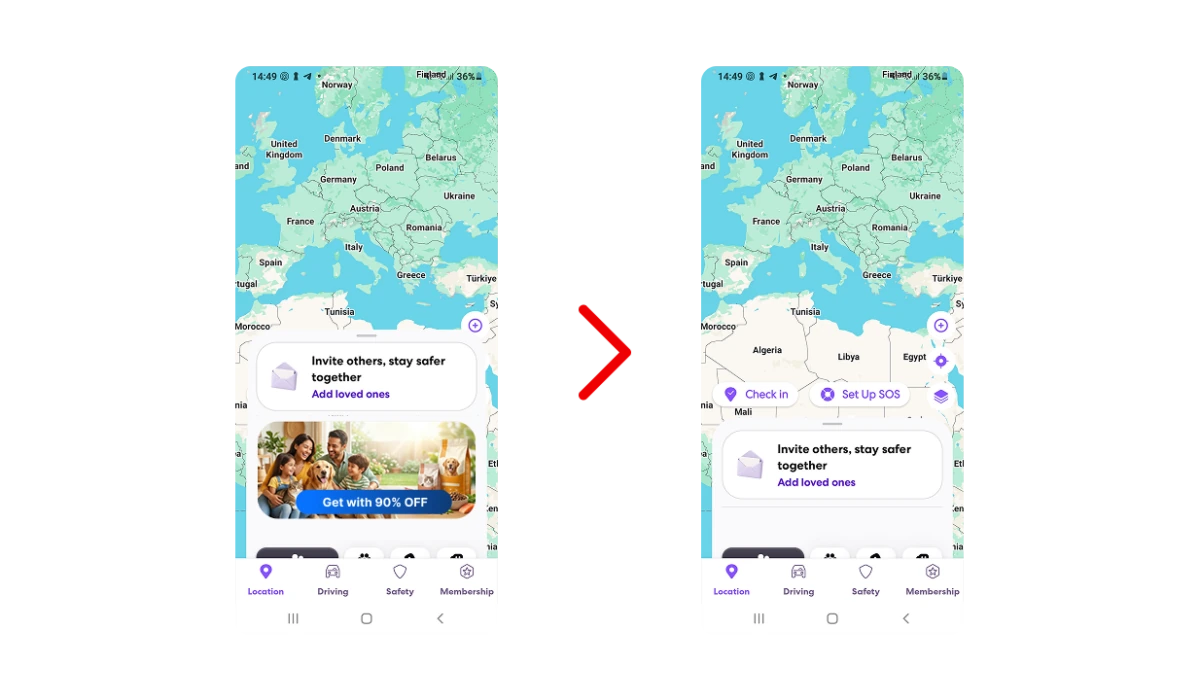
How to Get Rid of Life360 Ads on iPhone
Here’s the honest part. On iPhone and iPad, Apple’s sandbox keeps content blockers out of other apps — so a blocker can’t filter ads inside the native Life360 app the way it does on Android. AdLock for iOS still earns its place by clearing ads and trackers across Safari and the web, but for the Life360 app itself on iPhone, your realistic options are turning off personalized ads (above) or moving to a paid membership.
The Paid-Tier Option
If you’d rather pay to remove the ads outright, Life360’s paid memberships — Silver, Gold, and Platinum, running roughly $7.99 to $24.99 a month — drop the advertising and add features like longer location history and more Places. Whether that’s worth it depends on how much your family uses the extras; if ads are the only thing bothering you, an ad blocker on Android does the job for less.
Why Use AdLock as Your Life360 Ad Blocker
Many ad blockers only touch the browser. AdLock works at the network and JavaScript level, which is why it can filter ads inside an app like Life360 on Android — not just on websites. It also blocks the tracking scripts behind personalized ads, cutting down how much is collected to target you.
Because it isn’t a browser extension, the Manifest V3 changes that weakened many blockers didn’t affect it. And with fewer ad elements loading, the app runs lighter and uses less mobile data — useful for something that’s already tracking location in the background.
One install covers Life360 plus every other app, game, and site on the device.
Tired of ads in Life360? AdLock clears the in-app banner and pop-up ads on Android.
Final Thoughts
The quick summary:
- Android: AdLock for Android clears the in-app ads — the most complete free fix
- Personalized ads: turn them off in Life360’s privacy settings to limit targeting
- iPhone / iPad: in-app filtering is limited by Apple; a paid membership or the personalized-ads toggle are the practical routes
- Prefer to pay: Life360’s paid tiers remove the ads and add features
Clear the ads and Life360 goes back to doing its one job — showing you where your family is — without the clutter on top.
Want the free app without the ads? Get AdLock and clean up Life360 on Android.
Frequently Asked Questions
Yes — the free tier shows banner and pop-up ads, and increasingly personalized ones. Paid memberships are the official ad-free route, and on Android an ad blocker clears the ads on the free plan.
On Android, install AdLock for Android — it filters the in-app banner and pop-up ads at the network level, no paid Life360 membership needed.
Open Life360’s Settings, find the Privacy or Data controls, and switch off the personalized-ads option. This limits ad targeting but doesn’t remove ads entirely.
Apple’s sandbox limits in-app ad blocking on iOS, so for the Life360 app itself the practical options are turning off personalized ads or upgrading to a paid membership. AdLock for iOS still clears ads across Safari and the web.
Yes — the Silver, Gold, and Platinum memberships drop the advertising and add features like longer location history. If ads are your only concern, though, an ad blocker on Android is the cheaper route.

Latest news

How to Get Rid of Ads on WEBTOON (Android, iPhone & Desktop)
How to Turn Off Ads on OnePlus (OxygenOS) — Full Guide
How to Get Rid of Ads on a Samsung Phone (One UI) in 2026

Government Spyware Is Now Delivered Through Online Ads

How to Block Annoying Ads on Business Insider Once and For All