How to Turn Off Ads on OnePlus (OxygenOS) — Full Guide

OnePlus built its reputation on a clean, fast version of Android, so running into ads on OxygenOS feels wrong — but they’re there. App recommendations in the system App Store, promotional cards in stock apps, and ordinary banner ads inside free apps you’ve installed. None of it is as heavy as some other skins, but on a phone you paid flagship money for, any of it is too much.
Stop the ads on your OnePlus — AdLock clears in-app and web ads system-wide.
There are two separate things to deal with, and it helps to keep them apart: OxygenOS’s own recommendations, which you switch off in settings, and third-party ads inside apps and websites, which a OnePlus ad blocker clears. This guide covers both.
Contents
- Does OxygenOS Have Ads?
- Where OnePlus Ads Come From
- How to Turn Off OxygenOS System Recommendations
- How to Block In-App and Web Ads on OnePlus
- A Note on Lock Screen Ads
- Does This Work on the OnePlus 12, 13, and 15?
- Why Use AdLock as Your OnePlus Ad Blocker
- Final Thoughts
- Frequently Asked Questions
Does OxygenOS Have Ads?
Not in the aggressive, lock-screen-takeover way some budget skins do — but yes, OxygenOS shows promotional content. The main sources are recommendation blocks: “Hot Apps” and “Hot Games” suggestions in the built-in App Store, promotional cards in a few stock apps, and system notifications nudging you toward OnePlus services. Then, separately, there are the normal ads inside third-party apps and websites, which have nothing to do with OnePlus.
The good news: the OxygenOS recommendations are optional, and you can switch most of them off. The third-party ads need a different tool.
Where OnePlus Ads Come From
Knowing the source tells you which fix to use:
- App Store recommendations: “Hot Apps” / “Hot Games” blocks suggesting apps to install.
- Stock app promos: promotional cards or banners inside some preinstalled OnePlus apps.
- System notifications: push notifications promoting OnePlus features, offers, or services.
- Third-party app ads: the banners and pop-ups inside free apps you installed — these come from ad networks, not OnePlus.
- Web ads: ads on sites you visit in Chrome or any browser.
The first three you turn off in settings. The last two need an ad blocker.
How to Turn Off OxygenOS System Recommendations
Start here — it’s free and takes a couple of minutes. Exact labels shift a little between OxygenOS versions, but the path is close to this:
- Turn off App Store suggestions: open the App Store (App Market), go to its Settings, and switch off recommendation or “Hot Apps/Games” options
- Mute promotional notifications: Settings > Notifications & status bar > Manage notifications, then turn off notifications for stock apps that push promos
- Disable app recommendations where offered: some stock apps have their own “recommendations” toggle in their settings — switch it off
That removes most of what OnePlus itself puts in front of you. What’s left are the ads coming from apps and websites.
How to Block In-App and Web Ads on OnePlus
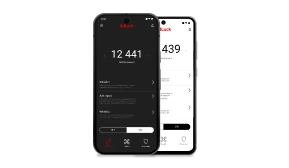
For the ads that aren’t OnePlus’s — banners and pop-ups inside free apps, and ads on websites — you need a system-wide blocker. AdLock for Android runs as a local VPN and filters ad traffic from every app and browser on the phone.
- Download AdLock from Google Play (search AdLock: Adblocker & Privacy) or from adlock.com
- Grant the VPN permission when OnePlus asks
- Install the CA certificate for HTTPS filtering — the app guides you through it
- Activate your license
- That’s it — ads in your apps and browser are filtered out
Because it works at the system level, one setup covers every app and browser at once, with no per-app fiddling.
A Note on Lock Screen Ads
Some searches ask specifically about OnePlus lock screen ads. To be straight about it: OxygenOS doesn’t run the kind of lock-screen ad engine you see on certain other brands, so there usually isn’t a dedicated “lock screen ads” toggle to hunt for. If you do see something promotional on the lock screen, it’s almost always a notification from a specific app — mute that app’s notifications (path above) and it’s gone. An ad blocker handles the in-app ads behind it.
Does This Work on the OnePlus 12, 13, and 15?
Yes. The approach is the same across recent OnePlus phones — the OnePlus 12, 13, and the newer 15 — because they all run OxygenOS, and the settings and the ad blocker behave the same way regardless of model. Menu labels may move slightly between OxygenOS versions, but the two-part fix holds: turn off recommendations in settings, block third-party ads with AdLock.
Why Use AdLock as Your OnePlus Ad Blocker
Plenty of ad blockers only work inside a browser. AdLock filters at the network and JavaScript level, so it clears ads inside apps too — not just on websites. It also blocks autoplay video and the tracking scripts behind targeted ads.
Because it isn’t a browser extension, the Manifest V3 changes that weakened many blockers didn’t touch it. And with fewer ad elements loading, your OnePlus stays as quick and clean as it was meant to be, using less mobile data in the process.
One install covers every app, game, and site on the device — not just the ones bothering you today.
Stop the ads on your OnePlus — AdLock clears in-app and web ads system-wide.
Final Thoughts
Two steps, two problems solved:
- OxygenOS recommendations: turn them off in the App Store and notification settings — free, built in
- Third-party app & web ads: AdLock for Android clears them system-wide
Do both and your OnePlus goes back to the clean, fast experience that sold you on it in the first place — no recommendation blocks, no banner ads, no promotional nudges.
Want your OnePlus genuinely ad-free? Get AdLock and clear the ads your settings can’t reach.
Frequently Asked Questions
OxygenOS shows app recommendations and promotional cards in some stock apps, plus system notifications for OnePlus services. They’re optional — you can switch most off in settings. Ads inside third-party apps and websites are separate and need an ad blocker.
Turn off the App Store recommendations and promotional notifications in OxygenOS settings, then install AdLock for Android to block the banner and pop-up ads inside third-party apps and in your browser.
Yes — AdLock for Android works on any OnePlus phone. It runs system-wide, filtering ads across every app and browser, and installs from Google Play or directly from adlock.com.
OxygenOS doesn’t run a dedicated lock-screen ad system like some brands. Anything promotional on the lock screen is usually a notification from a specific app — mute that app’s notifications to stop it.
Yes. Every recent OnePlus phone runs OxygenOS, so the same settings and the same ad blocker apply — menu names may shift slightly between OxygenOS versions.

Latest news

How to Get Rid of Ads on WEBTOON (Android, iPhone & Desktop)

How to Get Rid of Ads on Life360 (Android & iPhone)
How to Get Rid of Ads on a Samsung Phone (One UI) in 2026

Government Spyware Is Now Delivered Through Online Ads

How to Block Annoying Ads on Business Insider Once and For All