How to Get Rid of Ads on a Samsung Phone (One UI) in 2026
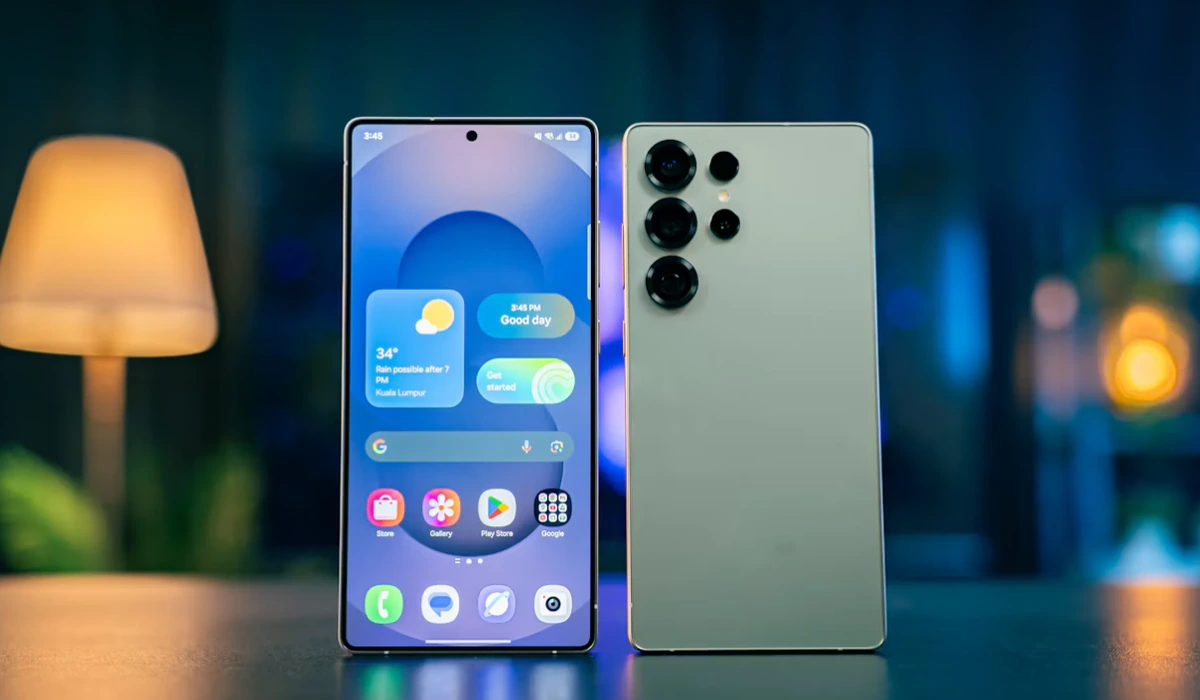
Samsung makes excellent phones, which is why the ads sting. Promotional spots inside Samsung’s own apps — Weather, Samsung Pay, Galaxy Store, Samsung Free — plus lock screen content in some regions, marketing notifications, and the ordinary banner ads inside free apps you’ve installed. For a premium Galaxy, that’s a lot of clutter you didn’t sign up for.
Tired of ads on your Samsung? AdLock clears in-app and web ads across the whole phone.
The fix comes in two parts: switching off Samsung’s own ads in One UI settings, and blocking third-party ads with a Samsung ad blocker. This guide walks through both, feature by feature.
- Does One UI Have Ads?
- How to Turn Off Ads in Samsung’s Own Apps
- How to Disable Samsung Free
- How to Remove Glance / Lock Screen Ads
- How to Turn Off Samsung Marketing Notifications
- How to Block In-App and Web Ads on Samsung
- Samsung Internet Ad Blocking
- Why Use AdLock as Your Samsung Ad Blocker
- Final Thoughts
- Frequently Asked Questions
Contents
- Does One UI Have Ads?
- How to Turn Off Ads in Samsung’s Own Apps
- How to Disable Samsung Free
- How to Remove Glance / Lock Screen Ads
- How to Turn Off Samsung Marketing Notifications
- How to Block In-App and Web Ads on Samsung
- Samsung Internet Ad Blocking
- Why Use AdLock as Your Samsung Ad Blocker
- Final Thoughts
- Frequently Asked Questions
Does One UI Have Ads?
Yes. Samsung’s One UI shows ads and promotional content in several of its own apps and surfaces — and the list has grown over the years. You’ll find them in the Weather app, Samsung Pay / Wallet, Galaxy Store, Samsung Free (the panel to the left of your home screen), Theme Store, and sometimes on the lock screen via Glance in certain regions. These are separate from the normal ads inside third-party apps and websites, and each needs its own switch-off.
Below, we go through the Samsung-owned ads first — all free to disable — then the third-party ads that need a blocker.
How to Turn Off Ads in Samsung’s Own Apps
Several stock apps have an ad or “Customization Service” toggle buried in their own settings. Turn these off one by one:
- Weather: open Weather > menu > Settings, and turn off the ads / notifications option.
- Samsung Pay / Wallet: open its menu > Settings > Notifications, and switch off marketing and promotional alerts.
- Galaxy Store: open it > menu > Settings, and turn off “Show recommended” / notification and marketing options.
- Theme Store: same idea — in its settings, disable recommendations and marketing notifications.
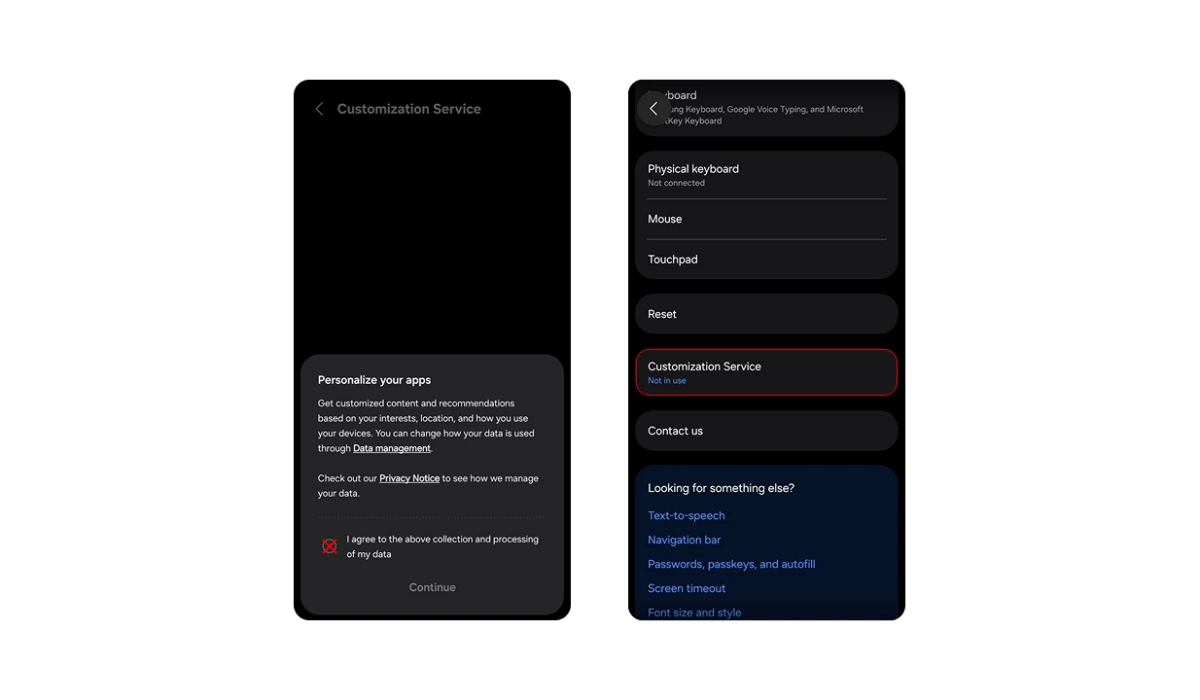
A faster blanket move: go to Settings > search for “Customization Service” and turn it off. This cuts the personalized recommendations Samsung uses to serve a lot of this content.
How to Disable Samsung Free
Samsung Free is the news-and-content panel to the left of your main home screen, and it’s a steady source of promoted content. To turn it off: pinch on an empty area of the home screen to enter edit mode, swipe to the left-most panel, and toggle Samsung Free off. Your home screen loses nothing you actually use — just the promo feed.
How to Remove Glance / Lock Screen Ads
If your Galaxy shows images, news, or ads on the lock screen that you never set, that’s usually Glance — a lock-screen content service enabled on Samsung phones in some regions (it’s common in India, for example). Here’s the honest part: an ad blocker doesn’t remove Glance, because it’s a system feature, not a web ad. You turn it off directly.
- Open Settings > Lock screen (or Lock screen and AOD)
- Look for Glance, Dynamic Lock screen, or a similar lock-screen content option
- Turn it off
If you don’t see Glance listed, your region or model doesn’t use it — one less thing to worry about.
How to Turn Off Samsung Marketing Notifications
Samsung also sends marketing pushes across its services. Turn the master switch off: Settings > find “Marketing information” or open individual Samsung apps > Settings > Notifications and disable marketing and promotional categories. This stops the SMS, email, and push promos Samsung sends about its own products.
How to Block In-App and Web Ads on Samsung
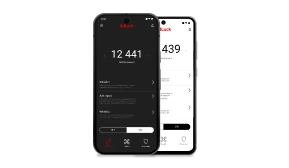
Everything above handles Samsung’s own ads. For the banners and pop-ups inside third-party apps, and the ads on websites, you need a system-wide blocker. AdLock for Android runs as a local VPN and filters ad traffic from every app and browser on the Galaxy.
- Download AdLock from Google Play (search AdLock: Adblocker & Privacy) or from adlock.com
- Grant the VPN permission when prompted
- Install the CA certificate for HTTPS filtering — the app guides you through it
- Activate your license
- Open any app — the third-party ads are filtered out
One setup covers every app and browser on the phone, including Samsung Internet and Chrome.
Samsung Internet Ad Blocking
If you mostly want cleaner browsing, Samsung Internet also supports content-blocker add-ons from the Galaxy Store, which you enable under the browser’s Settings. That only cleans up Samsung Internet, though — for ads across every app and browser at once, the system-wide route above is the one to use.
Why Use AdLock as Your Samsung Ad Blocker
Browser-only blockers leave most of a Samsung’s ads untouched. AdLock works at the network and JavaScript level, so it clears ads inside apps as well as on the web, autoplay video included.
Because it isn’t a browser extension, the Manifest V3 changes that weakened many blockers didn’t affect it. It runs across every browser and app on the Galaxy at once, and by stopping heavy ad elements from loading it speeds things up and cuts mobile data.
And it reaches past your Samsung’s ads — one install clears ads in your other apps, games, and sites too.
Tired of ads on your Samsung? AdLock clears in-app and web ads across the whole phone.
Final Thoughts
Here’s the full checklist for a clean Galaxy:
- Samsung’s own apps: turn off ads / Customization Service in Weather, Wallet, Galaxy Store, Theme Store
- Samsung Free: disable the panel from the home screen
- Glance / lock screen: turn it off in Lock screen settings (region-dependent)
- Marketing notifications: switch off marketing information
- Third-party app & web ads: AdLock for Android, system-wide
Work through the list and your Samsung is back to the clean, premium phone you paid for — with the ads Samsung can’t be bothered to leave out finally gone.
Ready for a Galaxy without the ads? Get AdLock and clear everything your settings can’t.
Frequently Asked Questions
Yes — Samsung shows ads in its own apps (Weather, Wallet, Galaxy Store, Samsung Free) and, in some regions, on the lock screen via Glance. Most can be switched off in settings; third-party app and web ads need an ad blocker.
Turn off ads in Samsung’s stock apps and disable Customization Service, then install AdLock for Android to block the pop-ups and banners inside third-party apps and in your browser.
Open Settings > Lock screen, find Glance (or Dynamic Lock screen) and turn it off. Glance is a system feature, so an ad blocker won’t remove it — you disable it directly. It’s only present in some regions.
Yes — AdLock for Android works on any Samsung Galaxy. It filters ads across every app and browser system-wide, and installs from Google Play or adlock.com.
Pinch an empty spot on the home screen to enter edit mode, swipe to the left-most panel, and toggle Samsung Free off. It removes the promo feed without affecting anything you use.

Latest news

How to Get Rid of Ads on WEBTOON (Android, iPhone & Desktop)
How to Get Rid of Ads on Life360 (Android & iPhone)
How to Turn Off Ads on OnePlus (OxygenOS) — Full Guide

Government Spyware Is Now Delivered Through Online Ads

How to Block Annoying Ads on Business Insider Once and For All