How to Block Pop-Ups on Your Mac

Ugh, pop-ups on Mac — is there anything more annoying? You’re just trying to browse on your MacBook, and boom, another ad or sketchy warning hijacks your screen. If you’re ready to block pop-ups on Mac and reclaim your sanity, we’ve got your back with some super simple steps and a killer tool like AdLock for Mac that’ll make your pop-up blocker on Mac work like a charm.
Why You See Pop-Ups on Your Mac
You’ve probably flipped on your browser’s pop-up blocker on MacBook Air, so why are pop-ups on Mac still crashing the party? Websites are sneaky, using tricks like JavaScript or redirects to slip past your defenses. Here’s the deal on what you’re seeing:
- Legit Pop-Ups: Stuff like login prompts or payment forms—kinda annoying but usually safe.
- Ad Pop-Ups: These are the ones pushing sales, like those creepy Google pop-ups on Mac that know you were eyeing new sneakers.
- Sketchy Pop-Ups: Fake “Your Mac is infected!” alerts or phishing scams trying to trick you.
- Sneaky Site Pop-Ups: Some sites are coded to dodge your Mac pop-up blocker like pros.
Knowing what’s popping up helps you fight back. Let’s get into how to block pop-ups on Mac the easy way.
Read also
How to Block Pop-Ups in Safari on Mac
Safari’s your go-to on an Apple computer, and it’s got a solid pop-up blocker for MacBook built right in. Here’s how to crank it up to block pop-ups on Safari Mac:
- Jump into Preferences: Open Safari, click Safari in the top menu, and hit Preferences (or just tap Cmd + ,).
- Find the Websites Tab: Click Websites, then look for Pop-up Windows in the sidebar.
- Shut ‘Em Down: Set “When visiting other websites” to Block or Block and Notify to stop most pop-ups on Mac. Easy peasy.
- Extra Privacy Points: Pop over to the Privacy tab and check Prevent cross-site tracking to keep ad-related pop-ups at bay.
- Wipe Old Data: In the Privacy tab, hit Manage Website Data to clear out any stored junk that might spark pop-ups.
Visual Hack: If you peek at Safari’s Websites tab, the Pop-up Windows section is right there in the sidebar, check the dropdown, and you’re golden. Screenshots of this screen make it crystal clear!
This setup catches most pop-ups on Safari Mac, but some sneaky ads might still wiggle through. Don’t worry—we’ve got a fix for that coming up.
Blocking Pop-Ups in Chrome and Firefox on macOS
If you’re Team Chrome or Firefox, you can also lock down pop-ups on Mac with their built-in pop-up blockers on Mac. Here’s the lowdown:
Google Chrome
- Head to Settings: Click the three dots in the top-right corner and pick Settings.
- Dive into Privacy: Go to Privacy and security > Site Settings > Pop-ups and redirects.
- Block Those Pop-Ups: Set it to Don’t allow sites to send pop-ups or use redirects to fire up your pop-up blocker on MacBook Air or Pro. This is key to stop Google pop-ups on Mac.
- Allow Trusted Sites: Under Customized behaviors, you can let specific sites (like your bank) show pop-ups if you need ‘em.
- Clear the Junk: In Privacy and security, click Clear browsing data to ditch cookies that might trigger pop-ups on Mac.
Visual Hack: In Chrome’s Site Settings, you’ll see Pop-ups and redirects front and center—screenshots of this page show exactly where to click.
Mozilla Firefox
- Open Settings: Hit the three-line menu (top-right) and choose Settings.
- Find Permissions: Scroll to Privacy & Security and look for the Permissions section.
- Turn on the Blocker: Check Block pop-up windows to enable your pop-up blocker on Mac. Hit Exceptions to greenlight pop-ups for trusted sites.
- Crank Up Protection: In Privacy & Security, pick Strict under Enhanced Tracking Protection to squash ad-driven pop-ups on Mac.
- Wipe Cookies: Under Cookies and Site Data, click Clear Data to clean house.
Visual Hack: Firefox’s Permissions section has a big ol’ Block pop-up windows checkbox—screenshots of this make it a no-brainer.
Even with these pop-up blockers on Mac, some crafty Google pop-ups on Mac can still sneak through. That’s where a heavier hitter comes in.
Use Third-Party Software to Block Persistent Pop-Ups
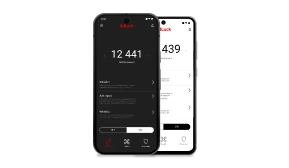
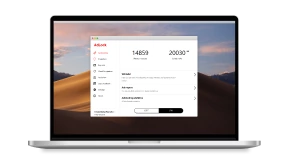
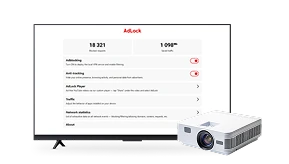
Your browser’s pop-up blocker on MacBook Pro or Air is great, but it’s not perfect. Some pop-ups on Mac are built to slip through the cracks, especially from sites loaded with ad scripts. That’s where a tool like AdLock for Mac swoops in. It’s a next-level pop-up blocker for MacBook that stops ads and trackers before they even get a chance to bug you.
How AdLock Helps You Block All Kinds of Pop-Ups
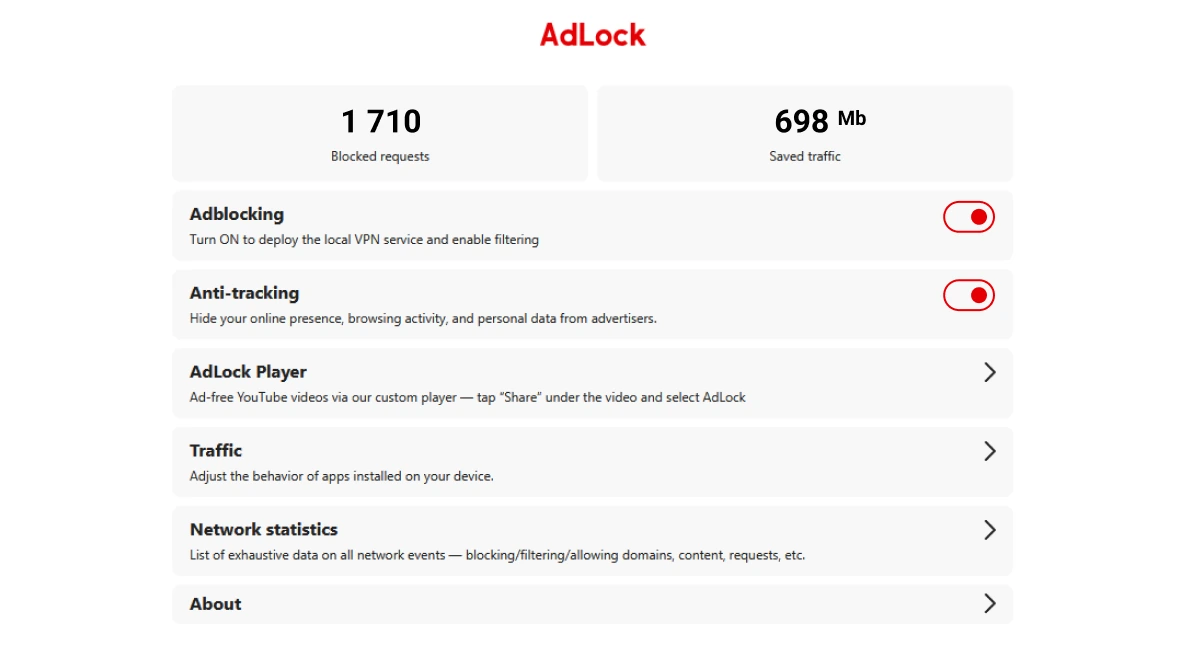
AdLock is like having a personal bodyguard for your Mac, kicking pop-ups on Mac to the curb. Here’s why it’s the ultimate pop-up blocker on Mac:
- Total Ad Smackdown: Blocks pop-ups, banners, video ads—you name it—across all your browsers and even some apps.
- Sneaky Script Stopper: Filters out trackers and shady scripts before they load, keeping your browsing fast and safe.
- All-in-One Protection: Unlike browser settings, AdLock guards your whole Mac, not just one app, making it a true Mac pop-up blocker.
- No Fuss, All Results: Install it, flip it on, and enjoy a pop-up-free Mac without messing with settings all day.
With AdLock, you can stop pop-ups on Mac for good — no more dodging Google pop-ups on Mac or sketchy alerts.
Final Tips to Keep Your Mac Pop-Up Free
Want to make sure your pop-up blocker on MacBook Air or Pro keeps the chaos away? Try these:
- Don’t Hit “Allow”: Those random “Allow notifications?” prompts? Skip ‘em unless you trust the site.
- Stay Updated: Keep macOS, Safari, Chrome, and Firefox fresh with the latest updates for top-notch pop-up blocker on Mac features.
- Avoid Shady Add-Ons: Only grab browser extensions from official stores to steer clear of adware in disguise.
- Clear the Clutter: Regularly dump your browser’s cache and cookies to cut down on pop-ups on Mac.
- Grab a VPN: Pair a VPN with your pop-up blocker for MacBook to hide your IP and dodge targeted ads.
Ready to kick pop-ups on Mac to the curb? Download AdLock and surf in peace — your Mac deserves it!
Frequently Asked Questions
How do I allow pop-ups on my Mac if I need them for certain websites?
In Safari, head to Preferences > Websites > Pop-up Windows and set trusted sites to Allow. For Chrome, go to Settings > Privacy and security > Site Settings > Pop-ups and redirects and add sites to the “Allow” list. Firefox lets you do this in Settings > Privacy & Security > Permissions > Exceptions.
Why am I still seeing pop-ups even after enabling the pop-up blocker?
Some pop-ups on Mac use clever scripts to bypass your Mac pop-up blocker. Try clearing your cache, beefing up tracking protection, or using AdLock to stop pop-ups on Mac for real.
What’s the difference between browser pop-up settings and using an ad blocker?
Browser settings block some pop-ups on Mac, but they miss the sneaky ones. A pop-up blocker for MacBook, like AdLock, works across your whole system, stopping pop-ups on Safari Mac, Chrome Mac, and more.
Are pop-ups on my Mac dangerous?
Some pop-ups on Mac, like fake virus warnings or phishing scams, can be trouble. Stick to trusted sites, skip suspicious prompts, and use a pop-up blocker on MacBook Pro or Air, like AdLock, to stay safe.
Latest news

How to Get Rid of Ads on WEBTOON (Android, iPhone & Desktop)

How to Get Rid of Ads on Life360 (Android & iPhone)

How to Turn Off Ads on OnePlus (OxygenOS) — Full Guide
How to Get Rid of Ads on a Samsung Phone (One UI) in 2026

Government Spyware Is Now Delivered Through Online Ads