Why Are My Ads in Spanish & How to Block Them

If you’ve recently noticed YouTube, Google, or app ads appearing in Spanish instead of English, you’re not alone. Many users — including Russian speakers living in the U.S., English-speaking households in diverse zip codes, and travelers returning from Latin America — run into this and ask the same question: “Why am I getting Spanish ads when I don’t speak Spanish?”
The issue isn’t a glitch. It’s how advertising platforms infer your language from your device, location, browsing history, and account data — and sometimes get it badly wrong. This guide covers the main reasons why ads in Spanish keep appearing, how to fix them, and why Russian speakers in particular often end up with Spanish-language YouTube ads.
Why Are My Ads in Spanish? Main Reasons
Ad platforms like Google and YouTube don’t pick ad languages at random. They build a targeting profile from dozens of signals. When those signals point toward Spanish, the ads switch — even if you’ve never spoken a word of it.
1. Device or Browser Language Settings
If your phone or browser language is set to Spanish, ad networks assume you want Spanish ads. This can happen after traveling, updating your device, or letting a family member use it.
- Android: Settings → System → Languages & input → Languages. Move English (United States) to the top.
- iPhone/iPad: Settings → General → Language & Region. Select English (United States).
- Chrome: Settings → Languages → Preferred languages. Keep English as default.
2. Location and IP Address
Advertising systems match your IP address to an ad market. If your IP resolves to a Spanish-speaking region — or a U.S. zip code where advertisers heavily target Hispanic audiences — you’ll get Spanish ads regardless of your phone’s language setting.
Common causes:
- Using a VPN with an exit node in Mexico, Colombia, Spain, or Argentina.
- Traveling and connecting through a local ISP.
- Living in parts of Texas, California, Florida, or New York where Spanish-language ad inventory is dense.
3. Google or YouTube Account Preferences
Your Google Account language setting overrides almost everything else for YouTube and Google Search ads. If it was ever changed to Spanish — after travel, a device sync, or an accidental tap — all Google products reflect that.
- Go to Google Account → Data & personalization → Language.
- Make sure English (United States) is selected.
- Open My Ad Center → Ad topics and remove any Spanish or Latino-category topics.
4. App or Platform Settings
Apps like Facebook, Instagram, Spotify, and Peacock maintain their own language settings, separate from your device. You can have English set everywhere else and still get Spanish ads inside an app that’s stuck on Español.
- Facebook/Instagram: Settings → Language and Region → English (US).
- YouTube app: Profile picture → Settings → General → Language → English (US).
These platforms often override system preferences, so it’s worth checking them individually.
5. Cookies and Ad Personalization
Cookies build a behavioral profile over time. Visit a Spanish news site, watch bilingual YouTube content, or browse a Spanish-language recipe blog — and ad platforms may quietly shift your language classification. Clearing cookies forces the system to reassess your profile from scratch.
6. Ad Inventory Gaps
This one gets skipped in most explanations. In many U.S. markets, Spanish-language ad inventory is abundant — advertisers produce high volumes of Spanish campaigns for the Hispanic U.S. audience. When your profile doesn’t fit cleanly into an English targeting bucket, the platform fills your ad slot with what else is available in your market. In the U.S., that’s frequently a Spanish-language ad.
This is especially common when your device language is set to Russian, Ukrainian, or another Slavic language — which brings us to the next section.
Why Russian Speakers Get Spanish Ads on YouTube
If your device is set to Russian and you’re seeing Spanish-language YouTube ads, there’s a specific mechanism behind it — not a bug.
YouTube can’t match you to its English inventory. The platform groups users into targeting buckets by language, location, and interest. In the U.S., the vast majority of ad inventory is in English. When your device language is Russian, you fall outside that dominant bucket — and YouTube fills your ad slot from whatever else is available in your area. Spanish-language inventory is plentiful and frequently wins the auction for users the system can’t clearly classify.
VPN exit nodes in Latin America. Russian-speaking users frequently run VPNs. If the exit node is in Mexico, Argentina, or Colombia, your IP tells ad systems you’re in a Spanish-speaking market — and language settings alone won’t override that IP-level signal.
What these Spanish YouTube ads typically look like. Russian speakers in the U.S. most often encounter auto insurance pre-rolls (Geico, Progressive, State Farm en Español variants), wireless carrier promotions, and fast food campaigns — all produced for the Hispanic U.S. market but served to anyone the platform can’t cleanly assign to the English segment. A Progressive insurance ad in Spanish showing up on a Russian-language Android phone is a textbook example of ad inventory fallback.
The fix is the same regardless of your native language: set your Google Account to English (US), clear cookies, and confirm your VPN isn’t routing through Latin America. Or skip the debugging and use an ad blocker — the ads won’t reach your screen regardless of what targeting logic the platform runs.
How to Stop Ads in Spanish: Step-by-Step Solutions
Here are the practical fixes, ordered from quickest to most thorough.
1. Change Device and Browser Language to English
If English isn’t your top system language, ad networks will keep treating you as a non-English speaker.
Android:
- Settings → System → Languages & input → Languages.
- Tap Add a language → English (United States).
- Drag it to the top of the list.
iPhone:
- Settings → General → Language & Region.
- Select English (United States).
- Restart the device.
Chrome (desktop or mobile):
- Settings → Languages.
- Move English to the top of the preferred languages list.
- Relaunch the browser.
2. Fix Your Google Account Language
- Go to Google Account Settings.
- Under General preferences for the web, set English (United States).
- Open My Ad Center → Customize ads.
- Remove any Ad topics tagged as Spanish or Latino.
Also clear your YouTube watch history if you’ve been watching Spanish-language content. Go to the YouTube app → Settings → History → Manage all history and delete relevant entries. Watch history feeds directly into ad targeting.
3. Clear Cookies and Cache
Cached ad profiles can persist for weeks even after you update language settings. Clearing them forces a clean start.
- Chrome: Settings → Privacy and security → Clear browsing data → Cookies and cached images.
- Safari: Settings → Safari → Clear History and Website Data.
- Firefox: Settings → Privacy & Security → Cookies and Site Data → Clear Data.
Restart the browser after clearing.
4. Check Your VPN Location
If you use a VPN, verify it’s routing through the U.S., U.K., or another English-speaking country. Any Latin American exit node puts your IP in a Spanish ad market, and language settings won’t reliably override that signal. Also review which apps have location permissions — browsers with location access can send geographic data that compounds IP-based targeting.
5. Use an Ad Blocker
If you’d rather not chase the targeting profile across every account and device, a system-level ad blocker handles it at the source. It removes ads entirely — Spanish, English, or otherwise — without requiring you to untangle what caused them.
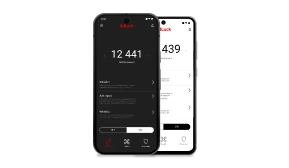
AdLock for Android and AdLock for iPhone work across the entire device — every browser and every app covered simultaneously. Spanish YouTube ads, Spanish Facebook ads, Spanish in-app banners: all blocked at once, no per-app setup needed.
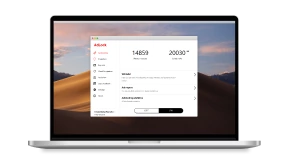
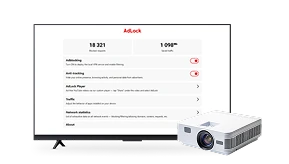
On desktop, AdLock for Windows and AdLock for Mac cover all browsers at the same time. Unlike Chrome extensions, AdLock works outside the browser entirely — Google’s Manifest V3 restrictions don’t apply to it, so its blocking capability was unaffected when extensions lost real-time filtering.
Best Practices to Avoid Wrong-Language Ads
- Review Google Account and YouTube language settings every few months — they can drift after app updates or travel.
- Don’t sign into your Google Account on public or shared devices.
- Clear cookies monthly if you regularly browse multilingual content.
- If you use a VPN, check which country you’re connected to before browsing — especially if your provider switches servers automatically.
- Skip “language fix” browser extensions. They rarely work and frequently collect your browsing data.
Conclusion
Seeing ads in Spanish when you don’t speak it is a targeting problem, not a device malfunction. Ad platforms infer your language from a mix of signals — location, account settings, browsing history, and available inventory. When those signals conflict or fall outside the expected pattern — which happens regularly for Russian speakers, travelers, and recent device switchers — Spanish-language ads are a predictable result.
Blocking ads at the source also cuts the tracking that generated the wrong-language profile in the first place. AdLock does both: it removes the ads and suppresses the tracking scripts that fed bad data to the targeting system. Once that pipeline is cut, platforms stop misidentifying your preferences — and the Spanish ads stop coming back.
FAQ
Why is YouTube showing me ads in Spanish?
Your Google Account or YouTube language is likely set to Spanish, or your IP resolves to a Spanish-speaking region. Also check your watch history — watching Spanish-language content influences ad targeting. Update both your Google Account language and the YouTube app’s language setting to English (US).
Why do Russian speakers get Spanish YouTube ads?
When a device is set to Russian, YouTube can’t match the user to its English ad inventory. In the U.S., Spanish-language inventory is abundant and often wins the auction for users who fall outside the standard English targeting bucket. Using a VPN with a Latin American exit node makes this worse. Set your Google Account to English (US) and confirm your VPN is routing through an English-speaking country.
Why am I seeing Spanish ads on Facebook?
Facebook runs its own ad system, independent of your device language. Go to Settings → Language and Region and set your preferred language to English.
How do I stop Google from showing ads in Spanish?
Open My Ad Center, remove Spanish-related ad topics, and confirm your Google Account language is set to English (United States).
Will a VPN help me avoid Spanish-language ads?
It depends on where you’re connecting. Routing through a U.S. or U.K. server puts your IP in an English-speaking ad market. If your VPN uses Latin American exit nodes, it will make the Spanish-ad problem worse. Always check which country you’re connected to before browsing.
Can an ad blocker stop Spanish ads?
Yes. AdLock blocks all video ads, banners, and in-app ads at the system level — including Spanish-language ones — across every browser and app on your device simultaneously.
I changed all my settings but still see Spanish ads — what now?
Your cookie profile or IP address is still flagging you as a Spanish-speaking audience. Clear cookies in your browser, restart the device, and verify your VPN isn’t routing through Latin America. Persistent Spanish ads after that usually mean a cached ad profile — give it 24–48 hours to reset, or use an ad blocker to bypass the targeting system entirely.
Latest news

How to Get Rid of Ads on WEBTOON (Android, iPhone & Desktop)

How to Get Rid of Ads on Life360 (Android & iPhone)

How to Turn Off Ads on OnePlus (OxygenOS) — Full Guide
How to Get Rid of Ads on a Samsung Phone (One UI) in 2026

Government Spyware Is Now Delivered Through Online Ads