How to Remove Ads From Overwolf
As a WoW veteran who’s been grinding Azeroth since the Vanilla days, I remember manually downloading addons from sketchy forums, unzipping files into the right folder, and crossing my fingers it wouldn’t crash the client. That was a rite of passage. Fast-forward to CurseForge, and yeah — there I saw Overwolf ads popping up during downloads. They were (and still are) a total buzzkill.
So if you’re here, you’ve had enough. Relatable. Blocking Overwolf ads cuts distractions, frees up system resources, and lets you actually focus on the game. Intrusive pop-ups mid-match are annoying enough without Overwolf adding to the noise.
In this guide, we cover how to block Overwolf ads using built-in settings, a dedicated ad blocker for Windows, and a few alternative methods.
Why Block Ads on Overwolf
Overwolf is a free desktop client that overlays tools and content directly into games. It supports over 1,500 titles — WoW, League of Legends, Minecraft, The Sims 4, and many more. Think of it as a supercharged Steam overlay focused on user-generated content: mods, real-time stat trackers, in-game guides. Genuinely useful stuff. The problem is the ad delivery model that comes bundled with it.
Pop-ups during downloads, banners inside overlay apps, interstitials between screens — they interrupt gameplay, eat CPU cycles, and just feel out of place when you’re in the middle of a ranked match. By choosing to stop Overwolf ads, you get:
- Uninterrupted Gameplay: No more pop-ups stealing your focus mid-match;
- Improved Performance: Fewer ad scripts running means less strain on your system;
- Better Immersion: No irrelevant promotions breaking the experience.
Removing Overwolf ads lets you focus on what matters — owning noobs. Just kidding, smurfing in silver.
Methods to Block Ads on Overwolf
There are several approaches to blocking Overwolf ads, from fiddling with built-in settings to running dedicated blocking software. Here’s what actually works.
Built-in Options
Overwolf gives you some control over overlays and notifications through its own settings. It won’t block embedded ads, but it’s a reasonable first step:
- Open the Overwolf app and go to Settings;
- Navigate to Game Settings for the specific title you’re playing;
- Disable Overlay & Hotkeys to stop ad-carrying overlay apps from appearing in-game;
- Turn off Auto Launch Permissions to prevent apps from launching — and loading ads — automatically.
These settings reduce Overwolf ads in game but won’t catch everything, especially ads embedded in app interfaces. For actual coverage, you need something working at a deeper level.
Using AdLock as an Overwolf Ad Blocker
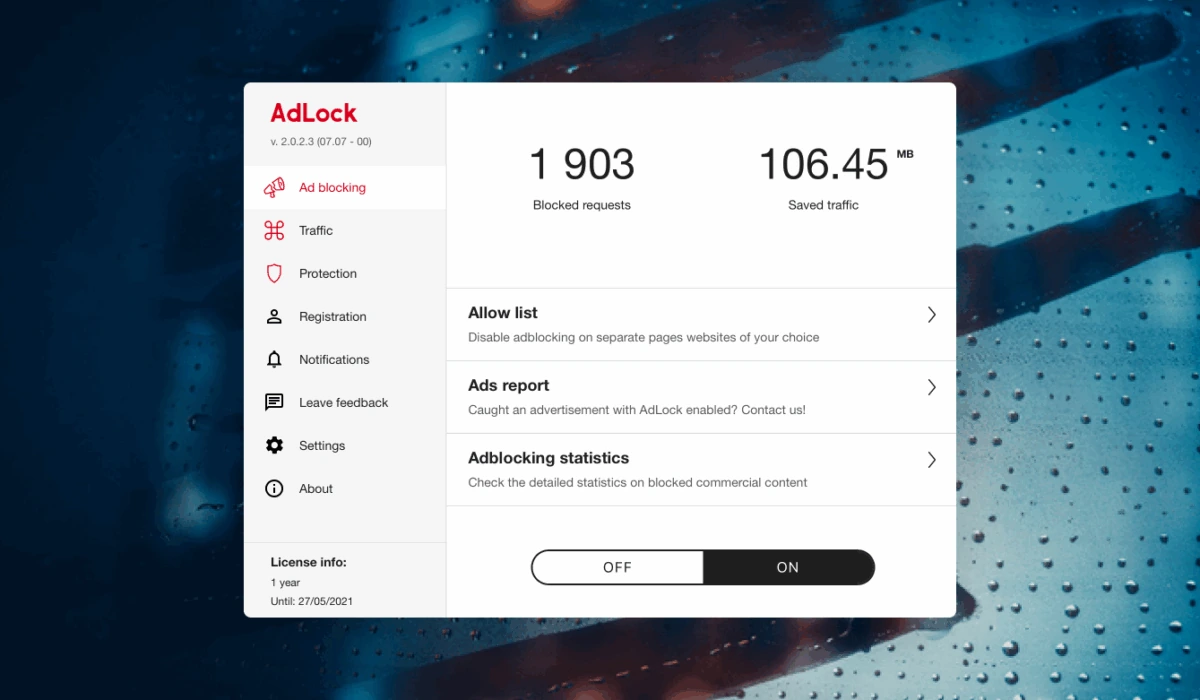
The most reliable way to block Overwolf ads is a system-level ad blocker. AdLock for Windows works outside the browser — it filters traffic at the network level, which means it covers Overwolf, CurseForge, your browsers, and every other app on your machine simultaneously. No need for separate extensions per browser or per app.
Setup takes a couple of minutes:
- Download and install AdLock for Windows from the official site;
- Launch AdLock — ad blocking is active by default, no extra configuration needed;
- Open Overwolf or CurseForge as normal. Ads are filtered before they reach the screen.
AdLock also blocks trackers, so you get a bit of extra privacy on top. And because it works system-wide, you’re not juggling multiple tools.
Alternative Methods
If you’d rather not install additional software, a few manual workarounds exist — though all of them come with tradeoffs.
- Modify the Hosts File
Add Overwolf’s ad servers to your system’s hosts file to block them at the DNS level. It works, but you need to know which domains to block, and the list needs updating whenever Overwolf rotates its ad infrastructure.
- Manual File Editing
For apps like Porofessor, some users edit specific .html files inside the app package to strip embedded ads. Risky — a wrong edit can break the app entirely, and updates will overwrite your changes anyway.
- Airplane Mode
Some games and apps preload ads on launch. Cutting your connection right after the app starts can prevent real-time ad fetching, but it also kills online features. Useful in very narrow situations, not a real solution.
All three methods are less reliable than a proper blocker and tend to break with Overwolf updates. They’re worth knowing about, but don’t expect them to hold up long-term.
Free vs Paid Solutions
When it comes to blocking ads on Overwolf, there’s a real gap between what free and paid options actually deliver.
- Free Solutions
Built-in Overwolf settings and manual workarounds like hosts file edits cost nothing. But they’re limited in scope, require some technical confidence, and frequently break after updates. You’ll spend time maintaining something that only partially works.
- Paid Solutions
AdLock covers all your apps and browsers from a single install, updates automatically, and doesn’t require you to manually hunt down ad domains. It works across everything on the machine — not just Overwolf. That system-wide coverage is what browser extensions can’t give you, since they only filter traffic inside the browser they’re installed in.
Tips for a Better Gaming Experience
Blocking Overwolf ads is a solid start, but here are a few more things that actually make a difference whether you’re grinding RPGs, running ranked, or deep in an open-world playthrough.
- Update Graphics Drivers
Keep your GPU drivers current. Every patch brings performance improvements for specific titles and closes potential security gaps.
- Use a VPN
A VPN can sometimes reduce ad load from geo-specific ad networks and improve connection stability to game servers in certain regions.
- Monitor Background Apps
Close anything you’re not using before launching a session. Background processes eat RAM and CPU that could go to the game.
- Maintain a Clean Setup
Dust your PC, organize your cables, clean your peripherals. Overheating throttles FPS in demanding games. Wash your mousepad — yes, seriously.
- Stay Chill
Avoid toxic behavior. Don’t blame teammates. Gaming’s more fun when you’re not being a prick — and nobody likes pricks anyway.
Conclusion
Blocking Overwolf ads is not harder than laning against Teemo as Nasus. Tweak Overwolf’s built-in settings to cut back on overlays, or go further with a system-level solution like AdLock for Windows that handles Overwolf, CurseForge, your browser, and every other app at once. For most people, the standalone app is the only setup you’ll ever need — install it once, forget about it, and enjoy sessions without the interruptions.
Frequently Asked Questions
How to remove ads from Overwolf?
You can remove ads by adjusting Overwolf’s settings to disable overlays and auto-launch, using AdLock to block ads at the network level across all apps, or manually editing your hosts file to block ad servers. The most reliable option is a dedicated system-level ad blocker.
Is there a free way to block Overwolf ads?
Yes — tweaking Overwolf’s built-in settings or editing your hosts file costs nothing. Both are limited, though. They won’t catch embedded ads and may need manual updates after every Overwolf release.
Is AdLock safe for gamers?
Yes. AdLock runs at the network level and doesn’t inject anything into game processes, so it won’t trigger anti-cheat systems or affect in-game performance.
Will blocking ads affect Overwolf apps?
Blocking ads through a network-level tool like AdLock typically doesn’t break app functionality. Manual methods like file editing carry more risk — one wrong change can break the app entirely, and updates will overwrite your edits.
Can I block pop-up notifications in Overwolf?
Yes. Disable auto-launch permissions and overlays in Overwolf’s settings to reduce pop-up notifications. For broader coverage — including ads in CurseForge and other Overwolf-powered apps — pair that with AdLock running in the background.

Latest news

Government Spyware Is Now Delivered Through Online Ads

How to Block Annoying Ads on Business Insider Once and For All

How to Block Annoying Ads on Bloomberg Once and For All

How to Block Annoying Ads on Los Angeles Times Once and For All

How to Block Annoying Ads on New York Post Once and For All