How to Block Annoying Ads on The Telegraph Once and For All
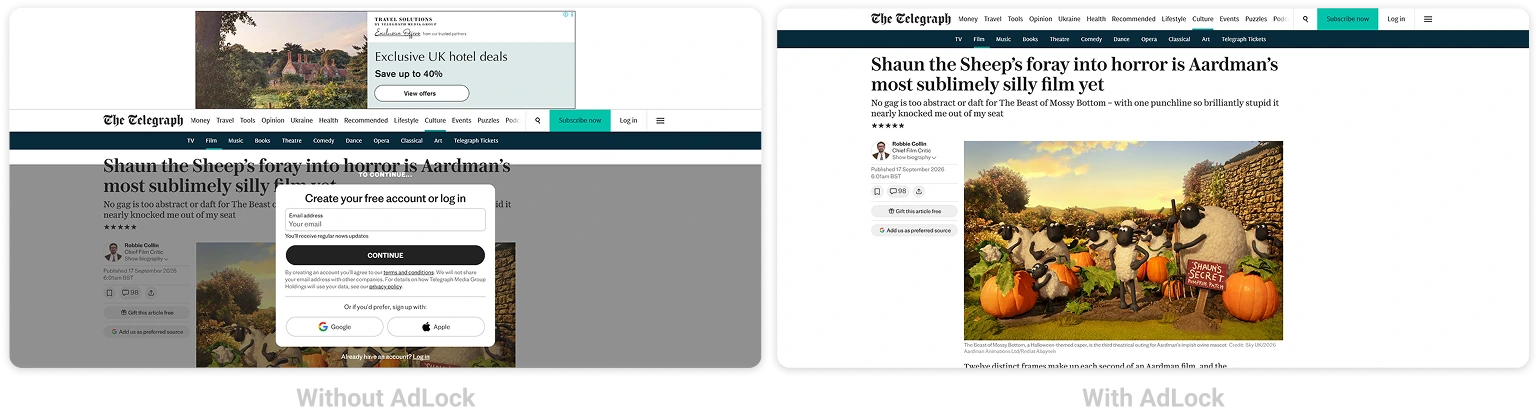
The Telegraph is a heavyweight in UK news, and its pages carry an ad load to match. Autoplay video, banners between paragraphs, sticky ad rails, and a subscribe wall that turns up after a few stories. For a plain read of the day’s news, that’s a lot to wade through.
Most of the clutter comes off. This guide covers every working way to block Telegraph ads — in Chrome, Safari, Firefox, and Edge on the web, and on Android and iPhone. A solid ad blocker handles most of it for you.
Read The Telegraph ad-free — AdLock clears video and banner ads.
One honest note first: The Telegraph runs a metered paywall, separate from advertising. An ad blocker clears the ads, video, and trackers — it won’t open paywalled subscriber articles, and we won’t claim otherwise.
Contents
- How to Stop Annoying Ads on The Telegraph
- How to Block Ads on The Telegraph Website
- How to Block Ads on The Telegraph App (Android & iOS)
- How to Stop The Telegraph Pop-Up Ads and Notifications
- Why Use AdLock as Your The Telegraph Ad Blocker
- Final Thoughts
- Frequently Asked Questions
How to Stop Annoying Ads on The Telegraph
The Telegraph runs autoplay video, sticky banner rails, ad units built into articles, and notification prompts. The right approach depends on the device you read on.
Here’s what this guide covers:
- Blocking ads on The Telegraph website (Chrome, Safari, Firefox, Edge)
- Blocking ads on mobile (Android and iOS)
- Stopping The Telegraph pop-ups and notifications
- Using AdLock to cover every device at once
How to Block Ads on The Telegraph Website
AdLock Standalone App (Desktop — Recommended)
On desktop, reach for the AdLock app for Windows or Mac. It cleans ad traffic at the network level, so a single install looks after Chrome, Firefox, Edge, and Safari together — no per-browser extension needed.
- Download AdLock for Windows or macOS from adlock.com
- Activate it with your license
- Filtering runs by default — open The Telegraph and it’s clean
Chrome
Prefer something lighter? The AdLock for Chrome extension clears Telegraph banners, video, and pop-ups the moment it’s installed. Its reach stops at Chrome, though.
Safari
Add AdLock from the App Store on your Mac or iPhone, then enable it under Safari > Settings > Extensions on macOS, or Settings > Safari > Content Blockers on iPhone and iPad. Safari then clears The Telegraph’s ads as the page loads.
Firefox
Firefox handles the AdLock extension the same way Chrome does — install, enable, and The Telegraph loads without its banners and video from the first visit.
Edge
On Edge, the HOSTS file method or the browser’s built-in tracking prevention do the job. Both are covered in our guide to block ads on Microsoft Edge.
How to Block Ads on The Telegraph App (Android & iOS)
The Telegraph app is ad-supported with no in-app toggle to switch ads off. Clearing them means filtering at the system level.
Android
AdLock for Android sets up a local VPN and filters traffic from every app, The Telegraph included.
- Download AdLock from Google Play (search AdLock: Adblocker & Privacy) or from adlock.com
- Allow the VPN permission when prompted
- Add the CA certificate for HTTPS filtering — the app guides you through it
- Activate your license
- Open The Telegraph — banner and video ads are gone
That one setup covers The Telegraph app, your mobile browser, and everything else on the phone.
iOS (iPhone and iPad)
Grab the ad blocker for iPhone from the App Store and enable it under Settings > Safari > Content Blockers. The steps match on iPhone and iPad. For the cleanest read, use Safari rather than the native app — Apple’s sandbox limits in-app filtering.
How to Stop The Telegraph Pop-Up Ads and Notifications
The notification prompts and breaking-news alerts are separate from the display ads. Allow them once and The Telegraph keeps sending alerts until you revoke the permission.
- Chrome: open chrome://settings/content/notifications, find telegraph.co.uk, set it to Block
- Safari (Mac): Safari > Settings > Websites > Notifications, find The Telegraph, set to Deny
- Safari (iPhone/iPad): Settings > Safari > Notifications, turn The Telegraph off
- Firefox: open about:preferences#privacy, click Settings by Notifications, remove telegraph.co.uk
That quiets the alerts and prompts. The display ads on the page still need an ad blocker.
Why Use AdLock as Your The Telegraph Ad Blocker
Lighter blockers catch the banners but leave the autoplay video and sticky rails that clutter The Telegraph. AdLock filters all of it, autoplay video included.
It also stops the retargeting scripts that trail you to other sites afterward. Because AdLock filters at the network and JavaScript level instead of living inside the browser, the Manifest V3 changes that clipped so many extension blockers left it untouched. With fewer heavy elements loading, pages open faster and use less mobile data.
And this stretches well past The Telegraph — one install clears ads across other news sites, apps, and games on the same device.
Read The Telegraph ad-free — AdLock clears video and banner ads.
Final Thoughts
For most readers, this combination works:
- Desktop (any browser): the AdLock app for Windows or macOS
- Chrome only: the free AdLock Chrome extension
- Safari on Mac or iPhone: AdLock with content blockers on
- Android: AdLock for Android, app and browser together
- iOS: AdLock content blockers, with The Telegraph open in Safari
- Notifications: block telegraph.co.uk in your browser settings
Work through each layer and The Telegraph reads cleanly again — with the paywall, separate as always, still in place.
Ready for news without the clutter? Get AdLock and read The Telegraph the way it should be.
Frequently Asked Questions
Can I block ads on The Telegraph for free?
Yes — AdLock’s free Chrome and Safari extensions clear ads on The Telegraph site in those browsers. Full mobile coverage, including in-app filtering on Android, needs the premium version.
Will an ad blocker remove The Telegraph paywall?
No. It clears ads, video, and trackers, but the paywall is a separate subscription system that AdLock doesn’t bypass.
Can AdLock disable video pop-ups on The Telegraph?
Yes — autoplay and pop-up video that lighter blockers miss gets filtered by AdLock on desktop and mobile.
How do I read The Telegraph without ads on iPhone?
Install AdLock for iOS, enable its content blockers under Settings > Safari > Content Blockers, and open The Telegraph in Safari rather than the app.
Why should I avoid unreliable ad-blocking extensions?
Some free extensions from unknown developers inject their own ads or collect browsing data. A trusted blocker won’t trade one problem for a worse one.

Latest news

How to Block Annoying Ads on Business Insider Once and For All

How to Block Annoying Ads on Bloomberg Once and For All

How to Block Annoying Ads on Los Angeles Times Once and For All

How to Block Annoying Ads on New York Post Once and For All

How to Block Annoying Ads on Reuters Once and For All